
Most lists of “best productivity Chrome extensions” repeat the same handful of names regardless of what is actually slowing a browser down. That gap is why this exact search keeps getting run long after the obvious answers, an ad blocker, a to-do app, stop being enough: the real friction is rarely either of those two things.
Research for this guide included a review of a well-traveled r/chrome thread that has held a top search position for this exact question across several countries for roughly two years, still being read because the problem it addresses, too many browser tools and not enough signal, has not gone away. Among the earliest real replies, three separate users, without prompting, named tab overload as their main complaint. One described it in four words: “tabs is my everyday pain.” That was not an isolated comment; it was the most recurring complaint in the thread, which is part of why tab management receives more attention here than the usual single mention it gets elsewhere.
There is no single universal “best” extension, because the right answer depends on which specific friction needs to be removed. What follows are 11 extensions, each solving a distinct, real problem, with every feature claim, rating, and install count verified against the extension’s current Chrome Web Store listing rather than copied from another roundup. Several are popular for good reason. One is popular and should not be, and this guide explains why.
Key Takeaways
- Tab overload is the single most common real complaint, not a theoretical problem invented for this article. It shows up unprompted in actual user discussions more than any other issue.
- The classic uBlock Origin is gone from the Chrome Web Store, removed by Google’s own Manifest V2 phase-out. uBlock Origin Lite is the real, current replacement, with real tradeoffs worth knowing before you install it.
- “Read and change all your data on the websites you visit” is a normal permission for anything that modifies pages (blockers, dark mode, password fillers), not an automatic red flag, but it’s worth understanding what it actually means.
- Popularity and quality aren’t the same thing. One extension on this list has over a million users and a 3.3-star rating, and this article doesn’t pretend otherwise.
- A password manager is a productivity tool first, long before it’s a security tool. The time it saves is just less visible than a to-do list app’s.
- Every install count, star rating, and feature claim below was checked directly against the extension’s live Chrome Web Store listing, not pulled from memory or secondhand “top 10” content.
Quick Picks, By the Problem You Actually Have
Skip ahead to whichever row matches your actual daily annoyance. The full writeup for each is further down.
| If your problem is | Install this |
|---|---|
| You have 60+ tabs open right now | OneTab |
| Ads and trackers are slowing everything down | uBlock Origin Lite |
| Your eyes are wrecked by 11pm | Dark Reader |
| Tasks get lost between browser and brain | Todoist for Chrome |
| Your writing needs a second pair of eyes | Grammarly |
| You doomscroll the instant a new tab opens | Momentum |
| Gmail tabs keep eating your tab bar | Checker Plus for Gmail |
| You’re explaining the same thing in meetings over and over | Loom |
| You reuse the same three passwords everywhere | Bitwarden |
| You need a wall between you and specific sites | StayFocusd |
The 11 Extensions, In the Order I’d Actually Install Them
A note on order before you scroll: this isn’t ranked best-to-worst. It’s roughly the order a new browser setup would need them, foundation first, nice-to-haves last. The one genuinely weak pick on the list is placed last on purpose, not hidden in the middle.
1. uBlock Origin Lite: the ad and tracker blocker you’ll actually be able to install
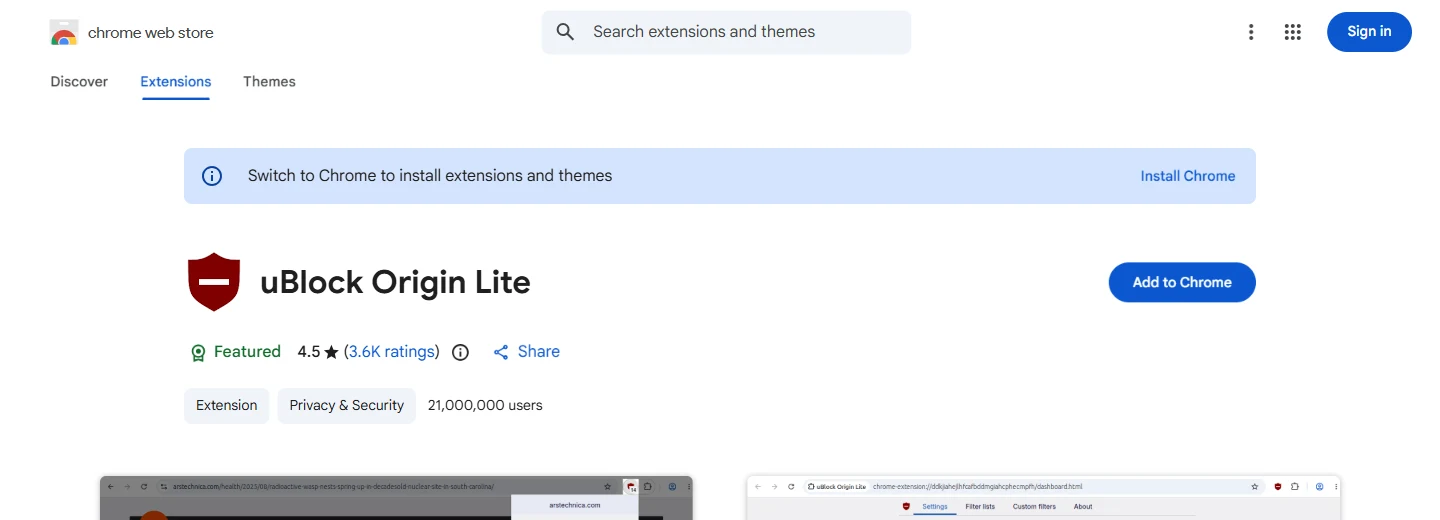
Here’s something most “best Chrome extensions” lists published before mid-2025 still get wrong: if you go looking for the original uBlock Origin on the Chrome Web Store today, you won’t find it. Google’s own Manifest V2 phase-out fully removed MV2 extensions from the Chrome Web Store on August 31, 2026, and the classic uBlock Origin, built on the older, more powerful webRequest API, was one of the extensions caught by it. What’s left in the store is uBlock Origin Lite, a separate, Manifest V3-rebuilt version with over 21 million users and a 4.5-star rating from 3.6K reviews.
It still blocks EasyList, EasyPrivacy, and Peter Lowe’s ad and tracking lists out of the box, with minimal resource use since filtering happens declaratively rather than through a constantly running background process. The honest tradeoff: Lite’s default mode skips some of the dynamic, cosmetic filtering the original was known for, so a small number of stubborn ad placements on messier sites may slip through where classic uBlock Origin would have caught them. For the other 95% of browsing, you won’t notice the difference.
Skip it if: you’re on an older install that still has the real uBlock Origin running (existing installs kept working past the removal date, even though new ones can’t be added), or if you’ve already standardized on a different blocker you trust. Don’t bother running two ad blockers at once; they fight each other more than they help.
2. OneTab: the actual fix for the tab problem everyone complains about
This is the one the Reddit thread kept pointing back to, directly or indirectly. Multiple separate commenters, without seeing each other’s replies, brought up tab-management tools as their answer to “what’s a must-have productivity extension,” which tells you tab hoarding isn’t a niche complaint, it’s close to the default state of a busy browser.
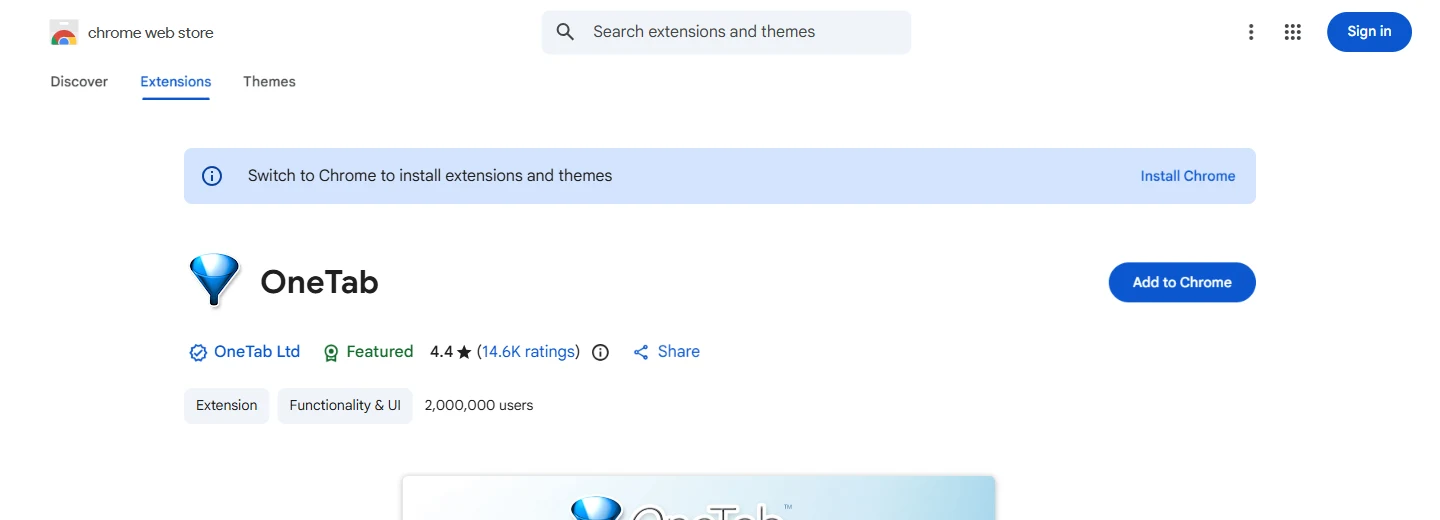
OneTab’s entire job is converting every open tab into a single, clickable list, which the developer’s own listing claims can cut memory use by up to 95% compared to leaving all those tabs live. It has 2 million users and a 4.4-star rating across 14.6K reviews. The part worth knowing: it doesn’t sync your tab list to the cloud by default, and tab URLs are never transmitted anywhere unless you specifically use the “share as a web page” feature, which matters if you’ve been burned by a tab manager that quietly phones home.
Skip it if: you already live inside a tab-grouping workflow (Chrome’s native tab groups, or a bookmarking habit that actually sticks). OneTab solves hoarding, not organization, if you need folders and categories rather than one flat list, look at something built around structure instead.
3. Dark Reader: the one even the Reddit die-hards agreed on
One comment in that same thread summed up a certain type of long-time Chrome user in five words: “ffs: uBO, read aloud, dark reader,” the kind of reply from someone who’s tried everything else and settled on a short, boring, non-negotiable list. Dark Reader earns that spot. It has 7 million users and a 4.7-star rating from 13.2K reviews, the highest rating of anything on this list.
It generates a dark theme for sites that don’t have one, on the fly, with adjustable brightness, contrast, and sepia settings, plus a per-site ignore list for the handful of pages that already look fine. The genuine value isn’t aesthetics, it’s that reading white backgrounds at 11pm is a real, cumulative source of eye strain, and this removes it without waiting for every individual site to ship its own dark mode.
Skip it if: your operating system already forces dark mode system-wide and your browser already inherits it cleanly, in which case this is redundant rather than wrong.
4. Todoist for Chrome: getting the task out of your head before you forget it
Todoist itself is the tool 47 million people use across every platform, but the Chrome extension specifically (the thing that matters for this list) has 500,000 users and a 4.7-star rating across a genuinely large 51.4K reviews, a ratio that suggests people who install it keep using it. It was also the original poster’s own pick in the Reddit thread, listed for exactly the reason most people reach for it: turning a webpage, a highlighted quote, or a stray thought into a task without leaving the tab you’re on.
Right-click a block of text and it becomes a hyperlinked task back to that exact page. A reading-list article becomes a task instead of a 47th open tab. None of this is unique to Todoist specifically, but the Chrome integration is unusually frictionless, which is the entire point of a capture tool: if it’s slower than just remembering it, you won’t use it.
Skip it if: you’re already fully committed to a different task manager with its own browser extension (Notion, ClickUp, TickTick all have their own). The value here is capture speed, not Todoist being uniquely better than every alternative.
5. Grammarly: the mainstream upgrade from the niche writing tools Reddit actually uses
The original Reddit thread mentioned a couple of narrower, student-oriented writing and paraphrasing tools, which makes sense for the thread’s audience but isn’t the strongest pick for most people. Grammarly is the far more widely adopted version of the same category: 40 million users and a 4.5-star rating from 43.1K reviews, checking spelling, grammar, clarity, and tone across Gmail, Google Docs, LinkedIn, and most text fields on the web.
The honest caveat, and this one matters more than most “best extensions” content admits: Grammarly works by reading what you type, everywhere it’s active, which is the tradeoff for catching mistakes in real time. If you write anything genuinely sensitive (legal drafts, confidential client work) in a browser tab, that’s worth a second of thought before you leave it switched on universally rather than per-site. The free tier catches the basics; the paid tier’s AI rewrites and tone suggestions are a real upgrade but a genuinely optional one for most casual use.
Skip it if: you write primarily inside a dedicated app with its own grammar checking (Microsoft Word, Google Docs’ native suggestions), where a second overlapping checker just adds noise.
6. Momentum: a new tab page that makes you choose, instead of react
Also an original poster pick from the Reddit thread, and the one I have the most mixed feelings about including. Momentum replaces Chrome’s default new tab with a full-screen photo, a daily quote, a weather readout, and a simple to-do and focus field. It has 2 million users and a 4.5-star rating from 13.7K reviews.
The honest take: for some people this is genuinely useful, because the one thing it does well is interrupt the autopilot reflex of opening a new tab and typing a distracting site out of habit. For others it’s decorative friction that gets dismissed within a week. It earns a spot here specifically because of that interruption effect, not because the weather widget or daily quote are doing any real work. If you’ve ever caught yourself halfway through typing a social media URL before consciously deciding to, this is built for exactly that half-second.
Skip it if: you open very few new tabs in the first place (heavy tab-hoarders, see pick #2, rarely open fresh ones), since the entire mechanism depends on that moment happening often enough to matter.
7. Checker Plus for Gmail: the OneTab principle, applied to your inbox
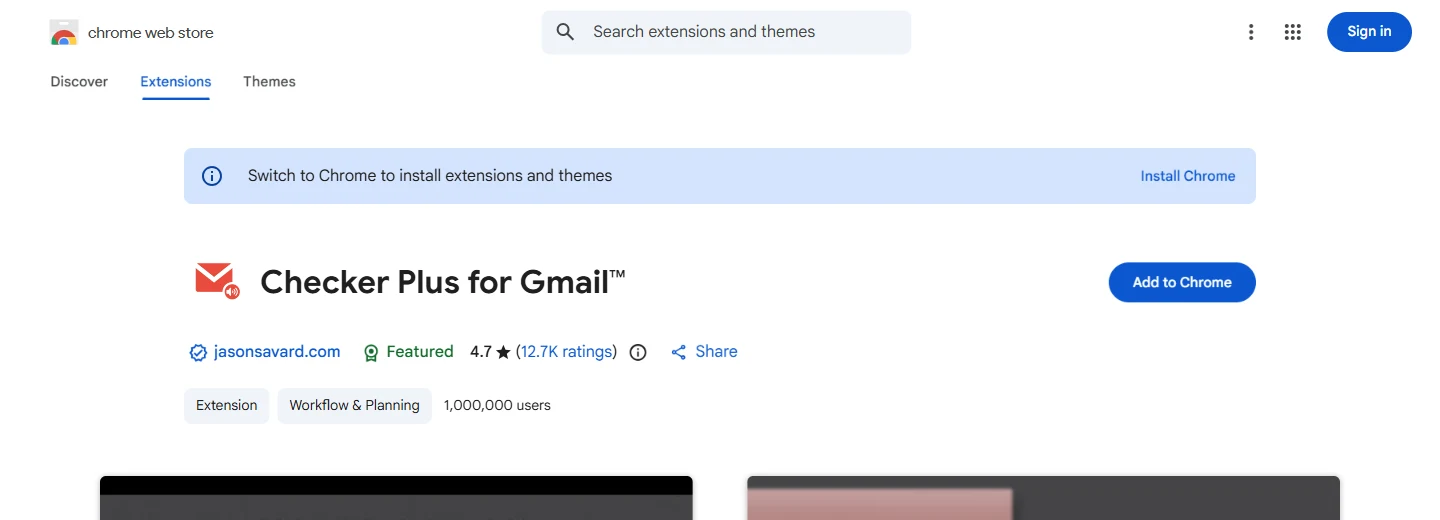
If tab hoarding is the headline complaint, a permanently pinned Gmail tab is one of its most common specific causes. Checker Plus for Gmail lets you monitor one or several inboxes, preview and even reply to messages from a popup, and get desktop or voice notifications, all without a Gmail tab open at all. It has 1 million users and a 4.7-star rating from 12.7K reviews, developed independently by Jason Savard rather than by Google itself.
It also keeps working in the background when Chrome itself is closed, which is a genuinely unusual feature for a browser extension and the reason people with multiple Google Workspace accounts tend to reach for it specifically.
Skip it if: you use Gmail’s own desktop notification setting and genuinely don’t need message previews or voice alerts, since the base functionality overlaps with something Gmail already offers for free.
8. Loom: for when a meeting would be worse than a five-minute video
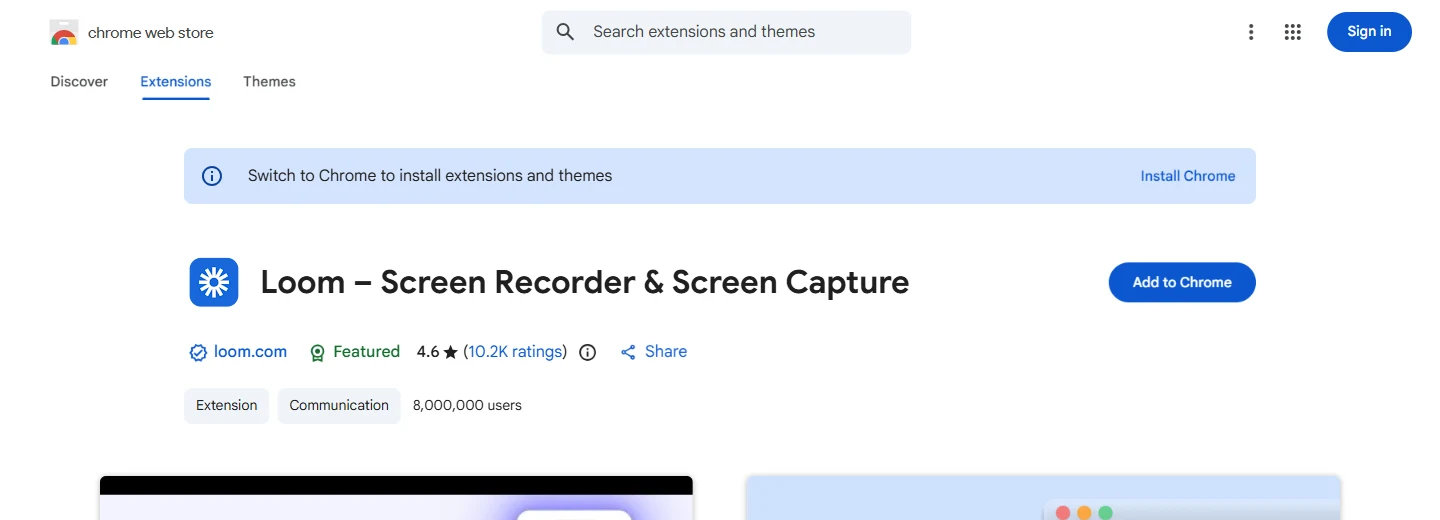
This is the one extension on the list built for team workflow rather than solo focus, and it earns its spot because the time it saves is often invisible until you add it up. Loom lets you record your screen, camera, or both and get a shareable link instantly, no file export, no upload step. It has 8 million users on this specific Chrome listing and a 4.6-star rating from 10.2K reviews, with the company’s own figures putting total users above 14 million across 200,000 companies.
The real productivity case isn’t the recording feature itself, plenty of tools can record a screen, it’s that a 4-minute Loom replaces a 25-minute status meeting more often than most teams admit. Viewers can watch at 2x speed, skip to the part that matters, and leave a comment instead of scheduling a follow-up call.
Skip it if: you work entirely solo with no one to send recordings to, in which case this is a genuinely great tool with no one on the other end of it.
9. Bitwarden: a productivity tool wearing a security tool’s name
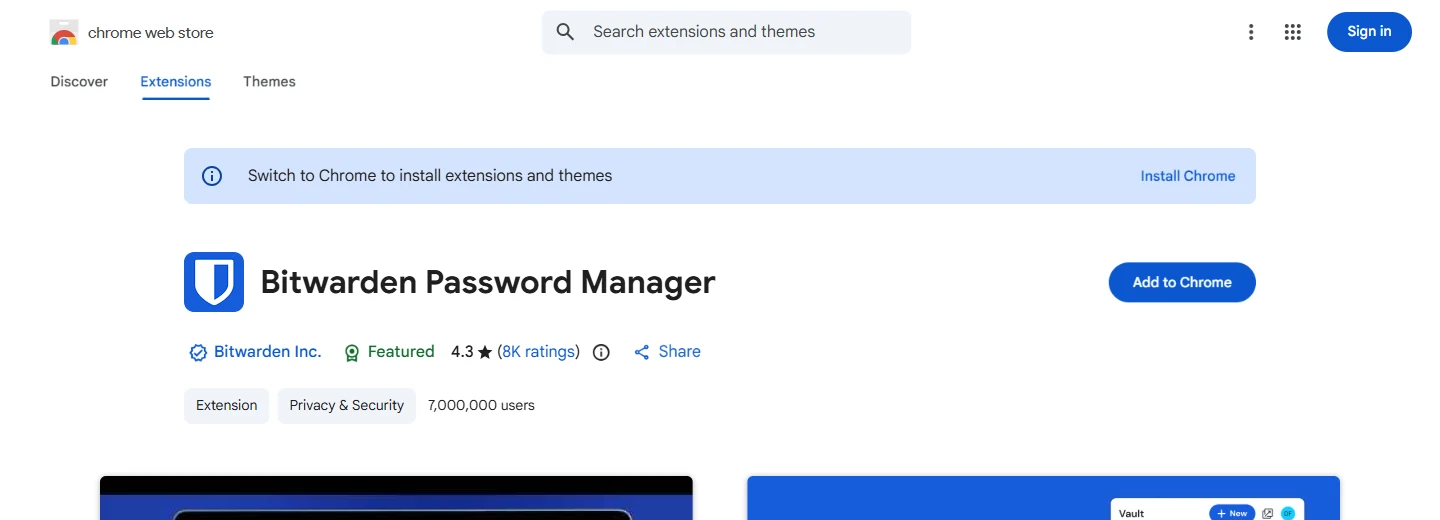
Most “productivity extension” lists skip password managers entirely, filing them under security instead, which undersells how much daily friction they remove. Every password reset, every “forgot password” email, every minute spent typing a password you’ve slightly misremembered is dead time, and it adds up faster than people expect. Bitwarden has 7 million users and a 4.3-star rating from 8K reviews, with end-to-end encrypted storage that works free across unlimited devices, not gated behind a paywall the way some competitors structure their free tier.
It generates and autofills unique passwords and passkeys, which also quietly closes off the single most common account-compromise vector (password reuse across sites) as a side effect of being convenient rather than as its primary pitch.
Skip it if: you’re already fully invested in a different password manager (1Password, Dashlane) with data you don’t want to migrate. The value of any password manager drops sharply the moment you’re running two of them half-heartedly instead of one properly.
10. StayFocusd: the nuclear option, for when willpower alone has already failed
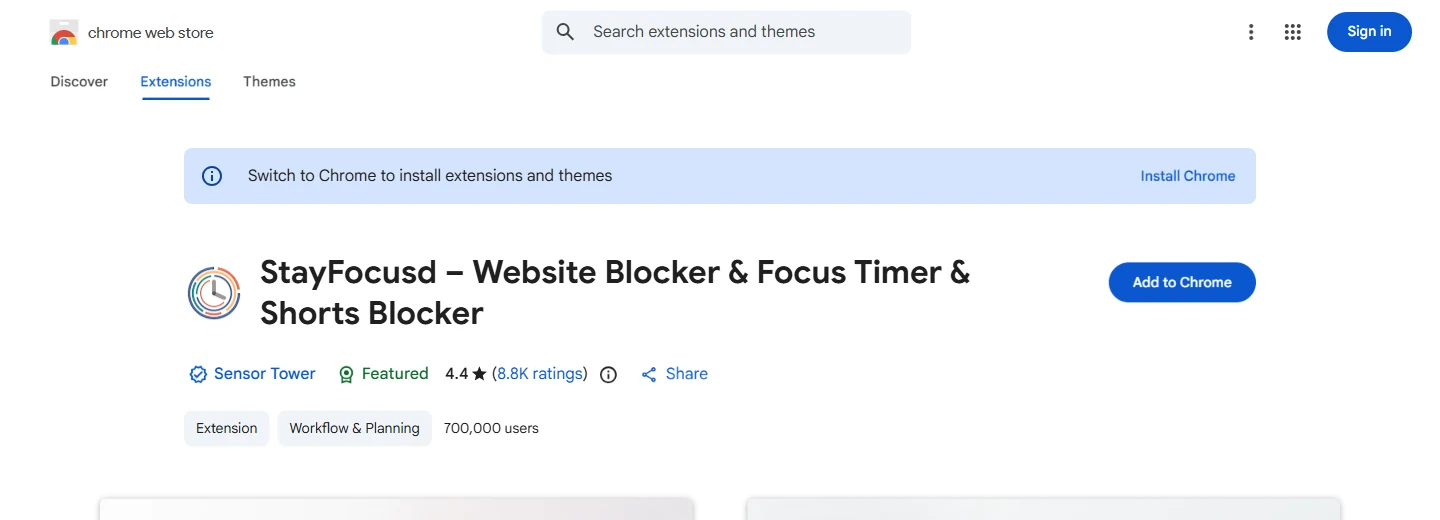
StayFocusd restricts how much time you can spend on specific sites, down to the exact page, subdomain, or even in-page element like YouTube Shorts or embedded videos. Its most-discussed feature is the self-explanatory “Nuclear Option”: block access to chosen sites for a set number of hours, with no way to cancel early once it’s running. It has 700,000 users and a 4.4-star rating from 8.8K reviews.
Worth knowing plainly: StayFocusd today is published by Sensor Tower, a mobile app analytics company, not the original indie developer who built it years ago. The extension’s current listing states user data isn’t sold to third parties and nothing is collected from the actual content of pages you browse, and functionally it still does exactly what it always did. It’s simply not an independent hobby project anymore, which is worth factoring in if a site’s ownership and incentives matter to how much access you’re comfortable granting it.
Skip it if: you’ve never actually tried just closing the tab first. This is a genuinely blunt tool for a problem some people solve with far less.
11. Notion Web Clipper: useful, popular, and the weakest pick on this list
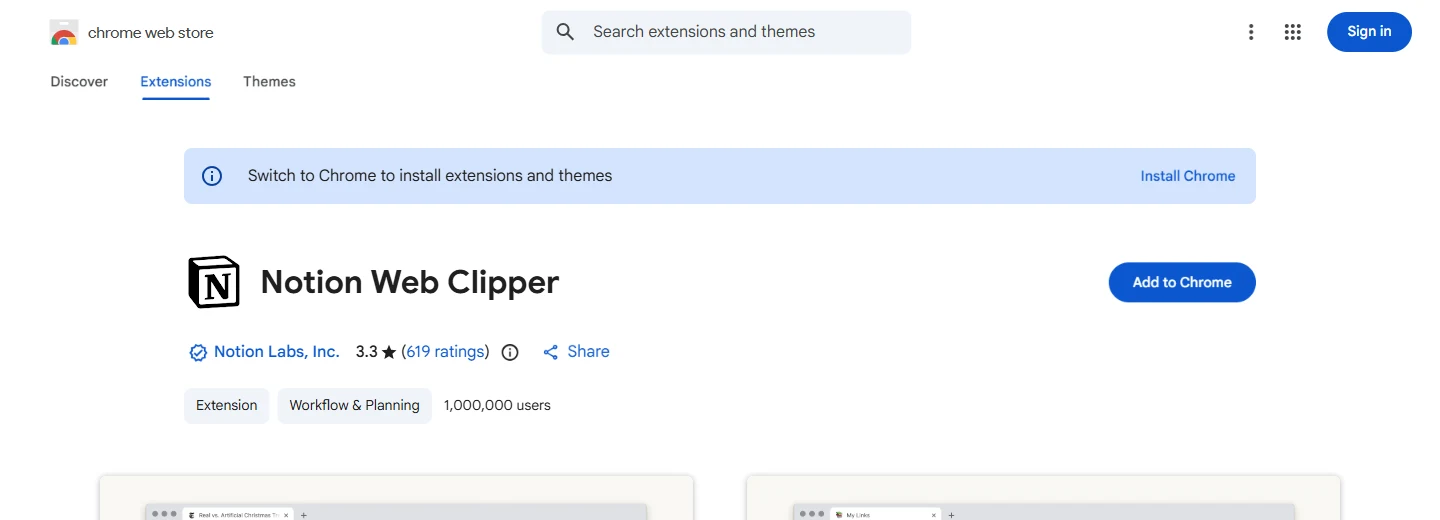
This one gets an honest downgrade rather than the usual uncritical inclusion. Notion Web Clipper lets you save any webpage directly into a Notion workspace with one click, which is genuinely convenient when it works. It has 1 million users, but only a 3.3-star rating from 619 reviews, the lowest combination on this entire list by a wide margin.
The complaints aren’t vague. Recurring, independently verifiable themes include login loops that force repeated re-authentication, clips that silently fail to save despite no error shown, and a “go online to save” message appearing while already connected. The extension’s last meaningful update also lagged well behind Notion’s own core app for an extended stretch. None of that makes it useless, millions of people clearly tolerate it, but it doesn’t belong on a “best” list without that caveat attached, and if you’re saving anything time-sensitive, it’s worth a manual double-check that the clip actually landed before you close the tab.
Skip it if: you’re not already inside the Notion ecosystem, or if reliability matters more to you than convenience. A plain bookmark, or a dedicated clipper built specifically around reliability, will frustrate you less.
What “Read and Change All Your Data on the Websites You Visit” Actually Means
Several extensions on this list, blockers, dark mode tools, password fillers, trigger this exact permission warning during install, and it understandably makes people pause. In plain terms, it means the extension’s code can read and modify the content of pages you visit, which is genuinely required for anything that blocks an ad, inverts a color scheme, or fills in a password field, since all three of those actions mean touching the page itself.
It is not, by itself, proof that an extension is reading your data maliciously or sending it anywhere. What actually matters is the developer’s separately disclosed data practices (visible further down every Chrome Web Store listing, under “Privacy”), whether the company has a track record, and whether the permission matches what the extension is supposed to do. A tab manager asking for banking-level access to every page is a mismatch worth questioning. A password manager asking for the same access is simply how password managers work.
The Honest Verdict: What I’d Actually Install First
If you’re starting from a completely clean browser, the order that solves the most real pain per minute spent installing is: uBlock Origin Lite and Dark Reader first, because they improve every single page you visit with zero ongoing effort from you. OneTab second, the moment your tab count crosses roughly 20 and stays there. Bitwarden third, because the password friction it removes compounds every single day you don’t have it. Everything else on this list is genuinely good, but solves a narrower, more personal version of the problem, and which of those you need depends entirely on whether your bottleneck is writing, meetings, email, or distraction.
If your browser toolbar leans more toward SEO and marketing work than personal productivity, two related roundups on this site are worth a look: our Shopify app detector comparison and our SEO, AEO and GEO checker extension picks, both built with the same verify-before-recommending approach as this list.
Frequently Asked Questions
What’s the single best productivity Chrome extension if I can only install one?
For most people, OneTab or uBlock Origin Lite. If tab overload is your specific problem, OneTab fixes it in one click. If your bigger issue is a slow, ad-cluttered browsing experience generally, uBlock Origin Lite gives the broadest, most passive improvement across every site you visit.
What happened to the original uBlock Origin extension?
Google removed all remaining Manifest V2 extensions, including the classic uBlock Origin, from the Chrome Web Store on August 31, 2026, as part of its long-planned Manifest V3 migration. uBlock Origin Lite, a separate extension rebuilt on Manifest V3, is the current replacement available for new installs, with somewhat reduced dynamic filtering compared to the original.
Is it safe to grant an extension “read and change all your data on the websites you visit”?
That permission is normal and expected for extensions that need to modify page content, such as ad blockers, dark mode tools, and password fillers. It isn’t inherently dangerous, but it’s worth checking the developer’s disclosed data practices on the Chrome Web Store listing and confirming the permission actually matches what the extension claims to do.
Do too many Chrome extensions slow down the browser?
Yes, cumulatively, though the effect varies a lot by extension. Extensions that run constant background scripts on every page (older-style content blockers, some analytics-heavy tools) have more impact than ones that only activate when clicked, like OneTab or Checker Plus for Gmail. Removing extensions you installed once and never use is a quick, real performance fix.
Can I use these extensions on Microsoft Edge or Brave?
Most of them, yes. Edge and Brave are both Chromium-based and can install extensions directly from the Chrome Web Store. A few, like Momentum, may show slightly different available features depending on the browser, so it’s worth checking the extension’s own listing for any browser-specific notes.
Is Grammarly’s free version good enough, or do I need Premium?
The free tier covers spelling, basic grammar, and punctuation, which is enough for most everyday writing. Premium adds AI-powered rewrites, tone and clarity suggestions, and plagiarism detection, genuinely useful for professional or client-facing writing, but optional for casual use.
Does Dark Reader work on every website?
It works on the large majority of sites by generating a dark theme algorithmically, but a handful of visually complex or heavily styled pages can render oddly. Dark Reader includes a per-site toggle and an ignore list specifically so you can turn it off on pages where it causes a problem rather than disabling it entirely.
What’s the real difference between OneTab and just bookmarking my tabs?
Bookmarking requires a deliberate decision per tab and creates a permanent, growing structure you have to maintain. OneTab converts your entire current tab set into one list in a single click, designed to be temporary and disposable, restored individually or all at once, which better matches how most tab hoarding actually happens: in a burst, not one tab at a time.
Is Notion Web Clipper reliable enough to depend on?
Its 3.3-star rating from 619 reviews reflects real, recurring complaints about login loops and clips that fail to save silently. It’s fine for casual, low-stakes saving if you’re already a Notion user, but it’s worth manually confirming anything time-sensitive actually saved before closing the original tab.
Should I use StayFocusd and Momentum together, or is that redundant?
They’re not redundant, they solve different moments. Momentum interrupts the reflex of opening a new tab before you’ve typed anything. StayFocusd stops you once you’ve already decided to visit a specific distracting site. Using both covers two different points in the same bad habit.
Do password manager extensions like Bitwarden actually save meaningful time?
Yes, mostly through eliminated friction rather than one dramatic time save: no password reset emails, no re-typing a forgotten password, no manually generating a new one for every signup. It’s a small amount of time recovered constantly rather than a large amount recovered once.
How many Chrome extensions is too many?
There’s no fixed number, but a reasonable check is reviewing your installed list every few months and removing anything you haven’t consciously used recently. Extensions you installed for a one-time task and forgot about are the most common source of unnecessary slowdown and unnecessary data access.