
To cancel your Shopify subscription, log in as the store owner and go to Settings → Plan → Cancel plan. Review your domains and outstanding charges, choose Cancel my plan and uninstall all apps, select a cancellation reason, enter your password and confirm the cancellation.
If your store is still on a free trial, the button will say Cancel trial instead of Cancel plan.
Your Shopify store will normally remain active until the end of your current billing cycle. When that date arrives, Shopify deactivates the store and ends the plan. Shopify Support cannot deactivate the store for you, so the process must be completed by the store owner.
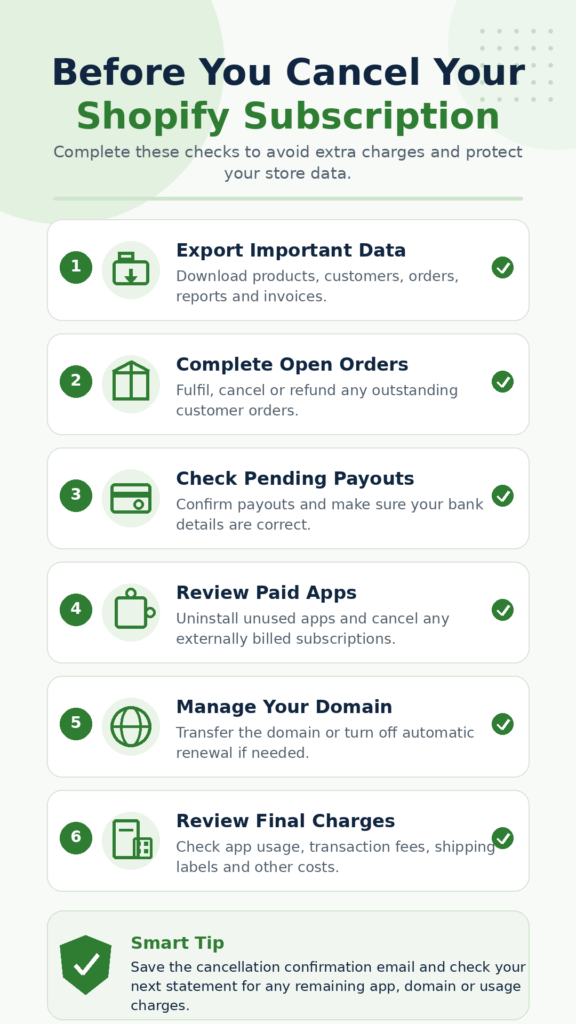
Before cancelling, take a few minutes to export important data, review app charges, deal with open orders and decide what to do with your domain. Closing the store without checking these areas can lead to lost access or unexpected charges later.
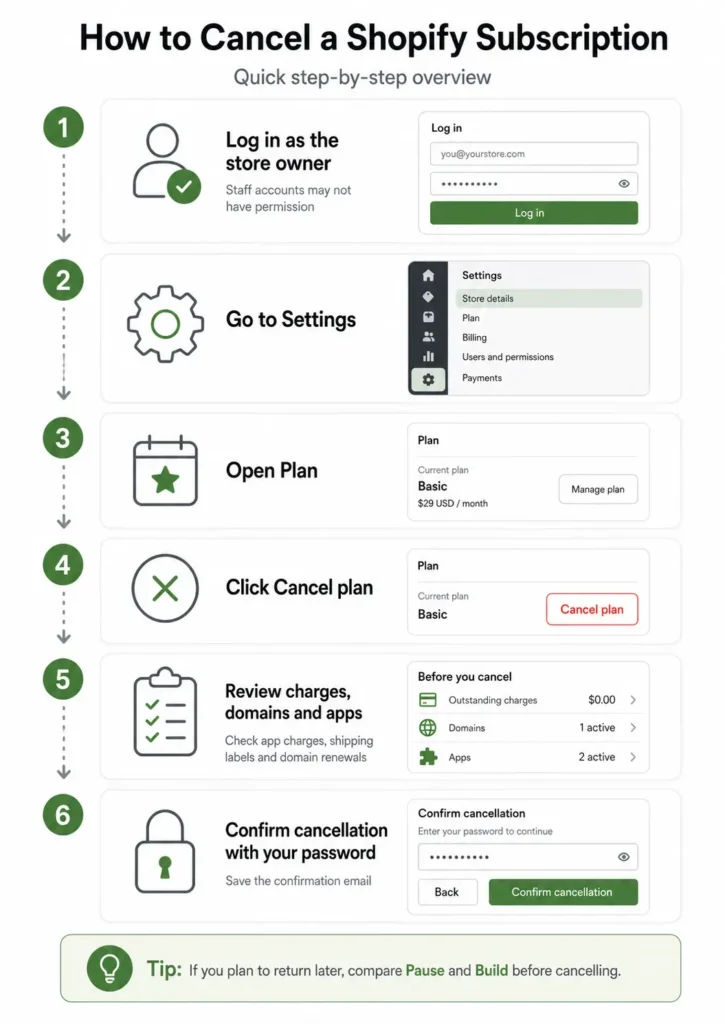
Quick Shopify Cancellation Steps
Follow these steps to cancel a paid Shopify plan:
- Log in to Shopify as the store owner.
- Open Settings.
- Select Plan.
- Click Cancel plan.
- Review the alternatives and pending charges.
- Select Cancel my plan and uninstall all apps.
- Click Continue.
- Choose a cancellation reason.
- Enter your Shopify password.
- Click Cancel plan to confirm.
You should receive an email confirming that your Shopify store has been deactivated or scheduled for deactivation.
What Type of Shopify Subscription Are You Cancelling?
The phrase “Shopify subscription” can refer to several different services. Make sure you follow the correct process for what you actually want to cancel.
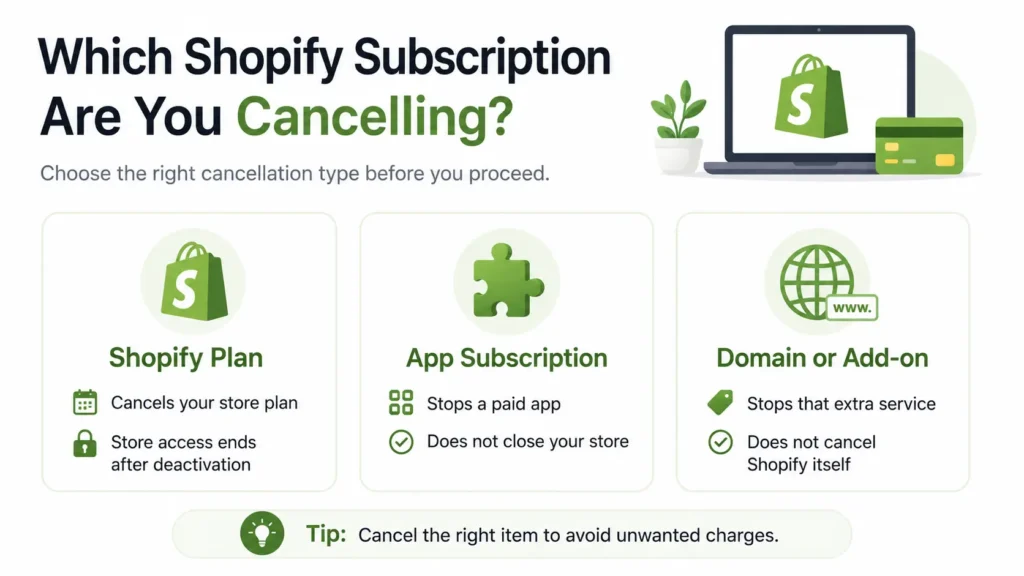
| What you want to cancel | Correct action |
|---|---|
| Your Shopify store plan | Go to Settings → Plan → Cancel plan |
| A Shopify free trial | Cancel manually only if you already selected a paid plan |
| A Shopify app subscription | Uninstall the app and check whether it bills externally |
| A product subscription bought from a Shopify store | Use the merchant’s customer subscription portal or contact the merchant |
| A Shopify Plus plan | Contact your Merchant Success Specialist |
| A temporary store closure | Consider Pause and Build instead of cancellation |
This guide mainly covers cancelling the subscription plan for a Shopify store.
Before You Cancel Your Shopify Subscription
Do not cancel your plan immediately after finding the button. Once the store is deactivated, you will lose access to the Shopify admin at the end of your billing cycle.
Complete the following checks first.
1. Export your store data
Download any business information you may need in the future, including:
- Products and product variants
- Customer records
- Order history
- Discount information
- Billing history
- Shopify Payments payout history
- Gift card records
- Theme files
- Reports needed for accounting or taxes
Shopify guarantees that deactivated store information will be retained for two years, but keeping your own records is still safer. You may also need exported files when moving to another ecommerce platform or preparing financial reports.
2. Deal with open orders
Check for orders that are:
- Unfulfilled
- Partially fulfilled
- Awaiting a refund
- Under dispute
- Scheduled for delivery
- Connected to a preorder
- Connected to a recurring product subscription
Complete, cancel or refund these orders before closing the store.
Customers can continue to access certain order details through upgraded order-status pages, but you will lose normal Shopify admin access after deactivation. That makes unresolved orders harder to manage.
3. Review gift cards and store credit
If customers still hold valid gift cards, decide how you will fulfil or refund those balances.
Export your gift card CSV file so you have a record of:
- Gift card codes
- Remaining balances
- Expiry information
- Customer details
- Outstanding obligations
Closing a Shopify store does not necessarily remove your legal or commercial obligations to customers who have already paid.
4. Check pending Shopify Payments payouts
Pending Shopify Payments payouts continue to process after store deactivation. They are sent to the bank account currently connected to the store.
However, if a payout fails after you lose admin access, you may need to reactivate the store to update the payout details or troubleshoot the problem.
Check that:
- Your connected bank account is active.
- Your payout details are correct.
- There are no unexplained negative balances.
- You have exported your payout history.
- You have saved records of pending transactions.
5. Review possible chargebacks
A customer can still open a chargeback for an order completed before your store was closed.
Once the store is deactivated, you will not have access to the Shopify admin to submit evidence against the chargeback. Shopify states that merchants may need to reactivate a store to manage the dispute.
Consider waiting until high-risk transactions and existing disputes are resolved before cancelling.
6. Check your current Shopify bill
Go to:
Settings → Billing → View current charges
Review charges for:
- Your Shopify plan
- Paid apps
- App usage
- Transaction fees
- Shipping labels
- Domains
- Other Shopify services
When you cancel your subscription, Shopify charges outstanding app usage fees, transaction fees and shipping-label costs. Your final bill may therefore be higher than the normal plan price.
7. Review every paid app
When you cancel the store, Shopify automatically uninstalls apps and collects outstanding app charges billed through Shopify.
However, some apps bill merchants directly using a separate card, PayPal account or external subscription system. Cancelling the Shopify store might not cancel those external payments.
Before closing your account:
- Open Settings → Apps and sales channels.
- List every paid app.
- Check whether each app appears on your Shopify bill.
- Log in to externally billed services.
- Cancel any separate subscription directly with the provider.
- Export any data stored inside important apps.
- Save cancellation emails or confirmation numbers.
Examples of external services might include email marketing platforms, inventory software, accounting systems, domain providers and customer-support tools.
8. Decide what to do with your domain
Cancelling a Shopify subscription does not automatically cancel domain renewal.
If your domain renews before the store reaches its final closure date, you might still be charged.
For a domain purchased through Shopify
You can:
- Turn off automatic renewal.
- Transfer the domain to another provider.
- Keep the domain for a future store.
- Connect it to another platform.
Begin the transfer before deactivating the store because you will lose access to normal domain settings after closure.
For a third-party domain
Log in to your domain registrar and:
- Turn off automatic renewal if you no longer need the domain.
- Change its DNS records if you are moving to another website.
- Remove it from the Shopify store when necessary.
- Keep ownership details and contact information updated.
Custom domains become disconnected when a Shopify store is deactivated. If you later reactivate the store, you may need to connect the domain again.
9. Save your invoices and financial records
Download your Shopify invoices before cancelling, especially if the store has been operating for several months or years.
You may need them for:
- Business accounting
- Tax reporting
- Expense verification
- Payment disputes
- App billing disputes
- Future business valuations
Do not rely only on being able to access the account later.
10. Inform customers when necessary
A formal announcement may not be necessary for a store that never launched. It is more important when you have existing customers, active subscriptions or pending orders.
Tell affected customers:
- When the store will close
- Whether existing orders will still be fulfilled
- How refunds will be handled
- What happens to recurring orders
- How long support will remain available
- Where they can contact you after closure
How to Cancel a Shopify Subscription on Desktop
You must be logged in as the Shopify store owner. A staff account may not have permission to deactivate the store.
Step 1: Open the Shopify admin
Sign in to the Shopify store you want to close.
Be careful when you manage more than one store under the same email address. Check the store name and URL before continuing.
Step 2: Go to Settings
Select Settings from the bottom-left area of the Shopify admin.
Step 3: Select Plan
Open the Plan section.
This page displays your current Shopify subscription and available plan-management options.
Step 4: Select Cancel plan
The wording depends on the store’s status:
- Select Cancel trial if you are using a free trial.
- Select Cancel plan if you are on a paid plan.
Step 5: Review the alternatives
Shopify may show options to:
- Downgrade your plan
- Switch to Pause and Build
- Start another store
- Continue with the cancellation
Do not choose an alternative unless it fits what you want to do.
Step 6: Review domains and pending charges
Shopify will display information about:
- Shopify-managed domains
- Domain renewal
- Paid apps
- Outstanding app usage
- Transaction fees
- Shipping-label charges
- Other pending costs
Read this information before continuing.
Step 7: Choose the full cancellation option
Select:
Cancel my plan and uninstall all apps
Then click Continue.
Shopify automatically uninstalls the apps connected to the store, but externally billed subscriptions still need to be cancelled separately.
Step 8: Select a cancellation reason
Choose the reason that most closely describes why you are leaving Shopify.
You may also see an optional field where you can provide additional feedback.
Step 9: Confirm with your password
Enter your Shopify password.
You may also be given the option to save your payment details for faster reactivation later.
Step 10: Complete the cancellation
Click Cancel plan or Cancel trial, depending on your account.
Shopify will send a confirmation email. Keep this email as evidence that you completed the process.
How to Cancel Shopify on Mobile
You can also cancel your plan through the Shopify mobile app.
- Open the Shopify app.
- Log in as the store owner.
- Tap the … or ⋮ menu.
- Tap Settings.
- Select Plan.
- Tap Cancel trial or Cancel plan.
- Review the downgrade and Pause and Build options.
- Review domains and pending charges.
- Select Cancel my plan and uninstall all apps.
- Tap Continue.
- Choose your cancellation reason.
- Add an optional comment.
- Tap Continue.
- Enter your password.
- Tap Cancel plan or Cancel trial.
The mobile process provides the same result as cancelling through the desktop admin.
How to Cancel a Shopify Free Trial
Whether you need to take action depends on whether you selected a paid plan.
You did not select a paid plan
You normally do not need to cancel anything.
When the free trial ends, Shopify freezes or pauses the store until you select a paid plan. You should not be charged a Shopify plan fee if you did not choose a plan.
You should still review any apps installed during the trial. App-related charges can be included on a future invoice if you approved a paid app subscription or usage charge.
You selected a paid plan during the trial
You must manually cancel the plan.
Go to:
Settings → Plan → Cancel trial
Complete the same cancellation process used for a paid store. Selecting a paid plan during the trial means Shopify can begin charging for it when the trial or promotional period ends unless the store is properly deactivated.
Should You Pause Shopify Instead of Cancelling?
Pause and Build may be a better choice when you plan to return.
It keeps your store online at a reduced subscription cost and allows you to access the Shopify admin. Customers can view your website and products, but they cannot complete purchases through checkout.
Pause Shopify when:
- Your store is seasonal.
- You need time to rebuild the website.
- You are temporarily unable to fulfil orders.
- You want to keep editing products and pages.
- You plan to restart the business.
- You need more time to prepare for launch.
- You want to preserve regular admin access.
Cancel Shopify when:
- You are permanently closing the business.
- You are moving to another platform.
- You no longer need the store.
- You do not expect to sell again.
- You want to stop the Shopify plan charge completely.
- You have already exported everything you need.
Pause and Build vs cancelling Shopify
| Feature | Pause and Build | Cancel Shopify |
|---|---|---|
| Shopify admin access | Available | Lost after deactivation |
| Storefront visibility | Available | Store deactivated |
| Customer checkout | Disabled | Disabled |
| Product editing | Available | Not normally available |
| Monthly plan cost | Reduced fee | Plan payments stop |
| App subscriptions | Can remain active | Shopify-billed apps are uninstalled |
| Reopening | Choose a new plan | Reactivate and choose a plan |
| Best for | Temporary breaks | Indefinite closure |
Pause and Build is available only to eligible paid stores that have completed their free trial. It is not available for Shopify Plus stores. All apps remain active when a store is paused, so paid apps should be reviewed or uninstalled individually.
To pause the store:
- Log in as the store owner.
- Go to Settings → Plan.
- Select Cancel plan.
- Enter your password when requested.
- Select Cancel plan again to view the alternatives.
- Choose Pause and Build.
- Review the details.
- Confirm the change.
The change may be scheduled for the end of your current billing cycle. If you need to stop orders immediately, password-protect the store while waiting for the pause to take effect.
How to Cancel a Shopify App Subscription
Cancelling one app is different from cancelling your Shopify store.
For an app billed through Shopify
To stop future Shopify app billing:
- Open Shopify.
- Go to Settings.
- Select Apps and sales channels.
- Find the app.
- Select Uninstall.
- Confirm the removal.
- Check your next bill for any outstanding charges.
An app charge can still appear after uninstallation when the fee was generated before the app was removed or before its billing cycle ended. Usage-based charges may also appear on a later invoice.
Cancelling inside the app’s own dashboard does not necessarily uninstall it from Shopify. To stop Shopify billing, the app should also be uninstalled from Settings → Apps.
For an app billed outside Shopify
Some app providers collect payment directly.
You may need to:
- Sign in to the provider’s website.
- Open its billing or subscription settings.
- Cancel the external plan.
- Remove your payment method where appropriate.
- Uninstall the Shopify app.
- Keep the cancellation confirmation.
Check both the Shopify invoice and your bank or card statement to understand how the app is billed.
Cancelling a Customer Product Subscription
You may have reached this guide because you purchased a recurring product from an online store that happens to use Shopify.
In that situation, you are not cancelling Shopify itself. You are cancelling a recurring order with an individual merchant.
Try the following:
- Open the subscription-management link in your confirmation email.
- Sign in to your customer account on the merchant’s website.
- Look for Manage subscription, Cancel subscription or Subscription portal.
- Follow the cancellation instructions.
- Contact the merchant directly when no cancellation option appears.
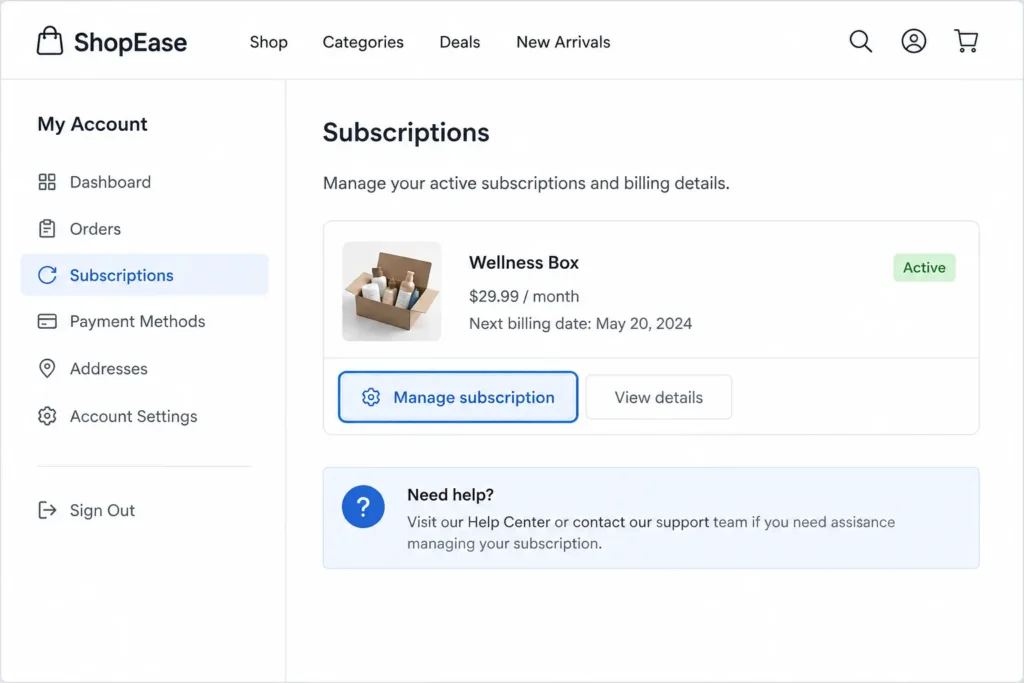
Shopify does not control the individual merchant’s cancellation policy, refund terms, or subscription management system. The exact process depends on the app and policies used by that store.
What Happens After You Cancel Shopify?
Cancelling a Shopify plan does not always shut the store down at the exact moment you click the button.
Your store remains active until the billing cycle ends
For eligible stores, the subscription ends and the store deactivates at the end of the current billing cycle.
For example, if you cancel on 10 July and the paid billing period ends on 25 July, the store is normally scheduled to close on 25 July.
You lose Shopify admin access
After deactivation, you lose normal access to:
- Products
- Orders
- Customers
- Reports
- Store settings
- Apps
- Themes
- Billing tools
Export anything important before the closure date.
Apps are automatically uninstalled
Shopify automatically uninstalls apps connected to a cancelled store. It also collects outstanding app amounts billed through Shopify.
Externally billed apps must be cancelled separately.
Your domain is disconnected
Custom domains become disconnected when the store is deactivated.
Domain renewals are separate from Shopify plan cancellation, so you should still manage automatic renewal or transfer the domain.
Pending payouts continue
Pending Shopify Payments payouts continue to process using the bank details already stored in the account.
Chargebacks can still occur
Customers can open chargebacks relating to transactions completed before closure.
You may need to reactivate the store to access the admin and submit evidence.
Shopify retains the store data
Shopify guarantees storage of deactivated store information for two years. During that period, you can normally reactivate the store without rebuilding everything from the beginning.
Why Is Shopify Still Charging Me After Cancellation?
A charge after cancellation does not always mean that the cancellation failed.
Check the following possibilities.
1. Your billing cycle has not ended
Your cancellation may be scheduled for the end of the billing period rather than taking effect immediately.
Open the Plan section and check the scheduled deactivation date.
2. There were outstanding app charges
App usage charges or previously approved recurring fees may still be due.
Shopify collects outstanding app charges when the plan is cancelled.
3. You used paid shipping labels
Shipping-label fees generated before closure can appear in the final amount.
4. There were transaction fees
Transaction fees incurred before the store closed can be added to the outstanding balance.
5. An app bills you directly
A service billed outside Shopify can continue charging the payment method stored with that provider.
Review:
- Bank statements
- Credit card statements
- PayPal subscriptions
- App-provider invoices
- Email receipts
6. Your domain renewed
Domain renewal is not automatically cancelled when you close your Shopify store.
7. You own another Shopify store
The charge may belong to another active or inactive Shopify store using the same payment method.
Sign in to your Shopify account and review every store connected to your email address.
8. A chargeback or post-deactivation invoice was created
Shopify states that merchants can receive later invoices relating to:
- Externally billed third-party services
- Chargebacks
- Another Shopify store
- Previous store activity
How to Check Whether Shopify Was Successfully Cancelled
Confirm all of the following:
- You completed the password-confirmation step.
- You received Shopify’s cancellation email.
- The Plan page shows a scheduled deactivation or cancelled status.
- You know the final day of your billing cycle.
- Externally billed apps have been cancelled.
- Domain renewal has been reviewed.
- You saved a copy of the confirmation email.
- You checked other Shopify stores connected to your account.
Do not assume that deleting the Shopify app from your phone, removing products or password-protecting the storefront cancels the subscription. None of those actions ends your Shopify plan.
Can You Get a Refund After Cancelling Shopify?
Shopify subscription-plan charges are non-refundable.
Cancelling the store does not normally entitle you to a refund for:
- A monthly Shopify plan
- An annual Shopify plan
- A promotional subscription payment
- Time remaining in the current billing period
Shopify’s pricing-plan guidance states that subscription-plan charges are non-refundable.
You should still contact Shopify Support when:
- You believe a payment was duplicated.
- You were charged for a store you do not recognise.
- Your account was compromised.
- A payment was taken because of an apparent billing error.
- The cancellation status does not match the invoice.
Support may investigate an incorrect charge, but that is different from receiving a standard cancellation refund.
How to Reactivate a Cancelled Shopify Store
You can normally reactivate a store within two years of deactivation, provided its data has not been permanently deleted.
To reactivate:
- Sign in to the Shopify account.
- Select the deactivated store.
- Pay any outstanding balance.
- Choose a new Shopify plan.
- Add or update the payment method.
- Confirm the plan.
- Reconnect the custom domain if needed.
- Review apps, checkout and store settings.
If you cancel but reactivate before the existing billing cycle ends, Shopify states that you will not be charged again for the period you have already paid for.
Can You Permanently Delete a Shopify Store?
Deactivating a store and deleting its data are not the same thing.
Deactivation stops the Shopify subscription and closes the store, while Shopify retains the information for possible reactivation.
The store owner can request deletion of personal data after deactivation. Once the store data has been deleted, it cannot be recovered and the store cannot be reopened.
Do not request permanent deletion until you are certain that you will not need:
- Customer records
- Order records
- Product information
- Theme customisations
- Reports
- Invoices
- Store settings
Are You Cancelling Because the Store Is Not Performing?
Closing may be the right decision, but it is worth identifying the actual problem first.
Your Shopify store is not getting traffic
Low sales do not always mean the store or product has failed. The problem may be weak keyword targeting, unoptimised collection pages, limited content coverage, or technical SEO issues. Before giving up, use an SEO, AEO, and GEO checker to identify problems that may be limiting your visibility in both search engines and AI-powered search.
A structured ecommerce marketing strategy can help determine whether there is still realistic demand before you close the store.
For search-specific problems, review whether your current approach covers technical SEO, product-page optimisation, internal linking and commercial keywords. South Asia Digital’s search engine optimisation services outline the main areas that influence organic visibility.
Visitors arrive but do not buy
The problem may be related to:
- Confusing navigation
- Weak product presentation
- Slow mobile performance
- Unclear shipping information
- Poor checkout experience
- Missing trust signals
- Difficult product discovery
Before abandoning an established brand, consider whether a focused Shopify website redesign could address the conversion problem.
Customer support takes too much time
Repetitive questions about delivery, product suitability, returns and order status can become difficult to manage manually.
A suitable Shopify support tool can reduce that workload. Before closing your Shopify store because customer enquiries have become unmanageable, try an AI chatbot for Shopify to automate support and reduce your workload.
You are moving to another platform
Do not deactivate Shopify until you have:
- Exported all required data.
- Set up the replacement website.
- Tested the new checkout.
- Migrated customer information safely.
- Recreated important redirects.
- Transferred or repointed the domain.
- Checked analytics and conversion tracking.
- Preserved high-performing URLs where possible.
Keep both platforms available during the final migration checks to reduce the risk of downtime or lost data.
Final Shopify Cancellation Checklist
Before confirming the cancellation, make sure you have:
- Exported products, customers and orders.
- Downloaded invoices and payout records.
- Resolved open orders and refunds.
- Reviewed gift card balances.
- Checked pending payouts.
- Considered possible chargebacks.
- Reviewed current Shopify charges.
- Cancelled externally billed apps.
- Exported data stored inside apps.
- Managed domain transfer and renewal.
- Saved theme files and important content.
- Informed affected customers.
- Confirmed whether Pause and Build would be more suitable.
- Saved the final cancellation email.
Cancelling a Shopify subscription takes only a few minutes, but closing the store properly requires more preparation.
Start with Settings → Plan → Cancel plan, then carefully review your apps, bills, customer commitments and domain before confirming. Doing so helps you avoid unexpected charges, retain important business records and preserve the option to reopen the store later.
Frequently Asked Questions
Can I cancel Shopify at any time?
Yes. A Shopify store owner can cancel the plan through the Shopify admin. The store will normally deactivate at the end of the current billing cycle.
How do I stop Shopify from charging me?
Properly cancel the plan from Settings → Plan, review outstanding charges, cancel externally billed app subscriptions and turn off unwanted domain renewal. Simply deleting the Shopify mobile app does not stop billing.
Does deleting a Shopify store cancel the subscription?
Completing Shopify’s store-deactivation process cancels the plan. Merely deleting products, removing the mobile app or hiding the storefront does not cancel the subscription.
Does uninstalling a Shopify app cancel its subscription?
Uninstalling an app stops future Shopify billing for many apps, but previously incurred fees may still appear. Services that bill directly outside Shopify must also be cancelled with the provider.
Will I receive a refund when I cancel Shopify?
No. Shopify states that subscription-plan charges are non-refundable.
Can Shopify Support cancel my subscription?
No. For security reasons, Shopify Support cannot deactivate the store for you. The store owner must complete the cancellation process.
Can I cancel Shopify during the free trial?
Yes. If you selected a paid plan during the trial, manually cancel it from Settings → Plan. If you did not select a paid plan, the account is normally frozen when the trial ends without charging a Shopify plan fee.
Can I pause Shopify without cancelling?
Eligible paid stores can use Pause and Build. It provides admin access at a reduced cost while disabling checkout. Paid apps may remain active and should be reviewed separately.
What happens to my domain after cancelling Shopify?
The domain becomes disconnected from the store, but its renewal is not automatically cancelled. You can turn off renewal, transfer the domain or connect it to another website.
Will Shopify keep my store after cancellation?
Shopify guarantees that deactivated store information will be retained for two years unless the data is permanently deleted.
Can I reopen a cancelled Shopify store?
Yes. You can normally reactivate it within two years by signing in, resolving outstanding charges and selecting a new plan.
Why can I not see the Cancel plan button?
Possible reasons include:
- You are logged in through a staff account instead of the store-owner account.
- The store is part of Shopify Plus.
- You selected the wrong store.
- You need to complete two-step authentication.
- The account has unresolved billing or access issues.
Shopify Plus merchants need to contact their Merchant Success Specialist to proceed with cancellation.