
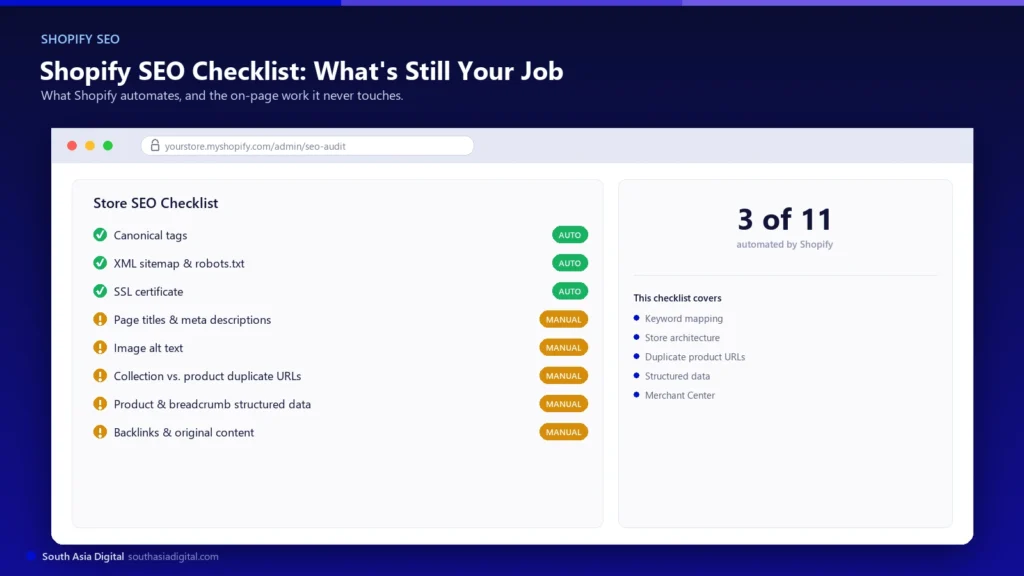
If you run a Shopify store, you’ve probably heard that Shopify “handles SEO for you.” That’s only partly true. Shopify does take care of a real chunk of technical SEO automatically, and it’s worth knowing exactly what that chunk covers, because it tells you where not to waste time chasing a problem that’s already solved.
What Shopify doesn’t do is the part that actually decides whether a store ranks: which keyword each page is trying to win, what the title tags and meta descriptions say, whether your theme is quietly linking to the wrong version of a product URL, and whether your structured data is set up the way Google’s shopping features actually require.
This is a practical checklist for that second part, the SEO work that’s genuinely still yours on Shopify in 2026, written against Shopify’s own current documentation and Google’s current structured data requirements rather than assumptions that may have drifted.

Key Takeaways
- Shopify automates canonical tags, an XML sitemap, robots.txt, SSL, and base product schema. It does not automate keyword strategy, metadata, alt text, content, backlinks, or Merchant Center setup.
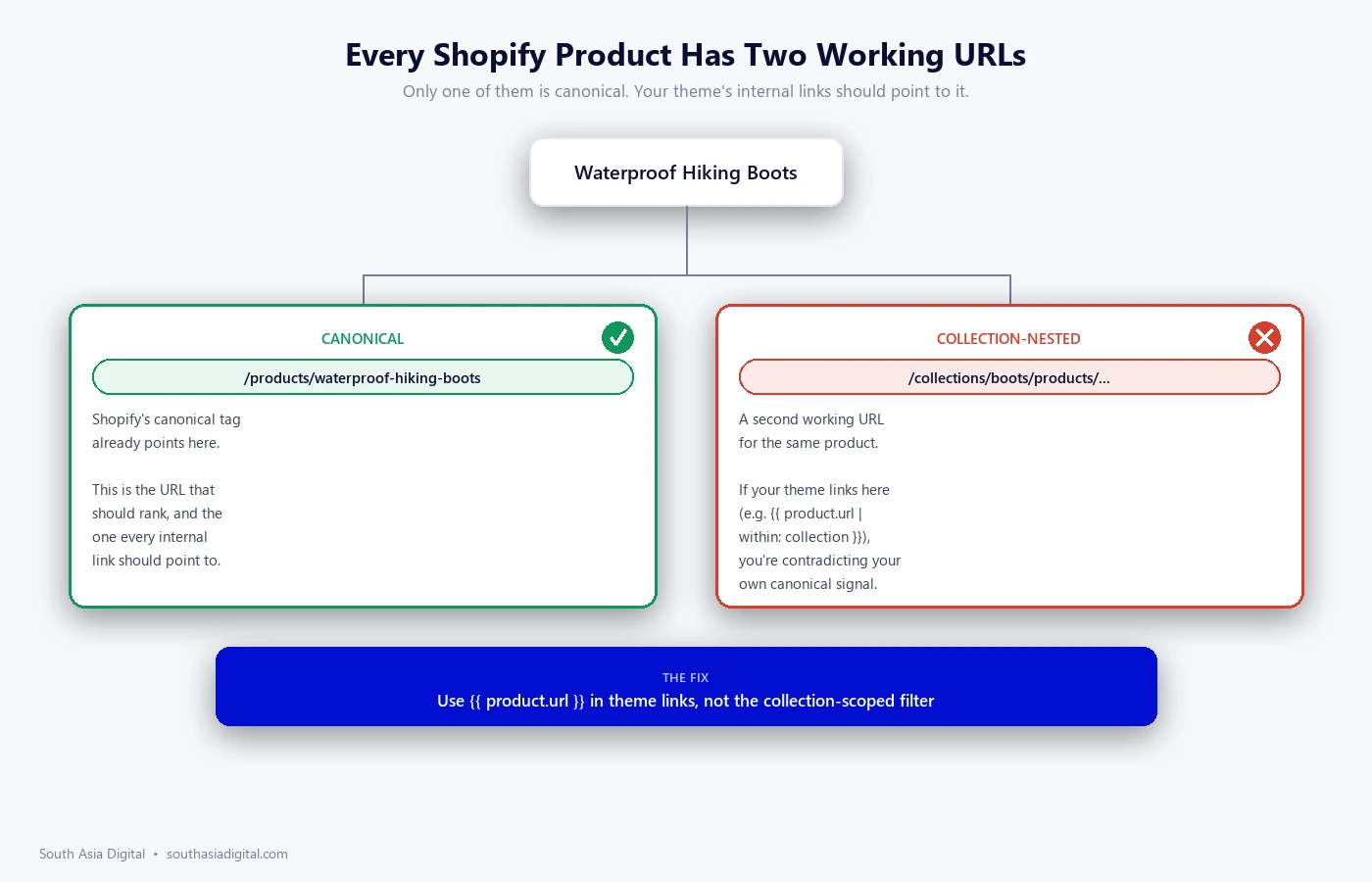
- Every Shopify product has two working URLs, the canonical
/products/handleversion and a collection-nested/collections/x/products/handleversion. The canonical tag already points to the short version; the real fix is making sure your theme’s internal links do too. - A purchasable product page needs merchant listing markup:
Product.name,Product.image, and anOffer(notAggregateOffer) with price and currency set. - Variants need a shared
ProductGroupwith aproductGroupID. Star ratings need a genuineAggregateRatingbuilt from real, verifiable customer reviews, not testimonials you wrote yourself. - Compressed images and a periodic app audit are usually the two biggest Core Web Vitals levers on a Shopify store specifically.
What Shopify Already Handles for You
Per Shopify’s own SEO documentation, the platform automatically provides canonical tags to prevent duplicate content from appearing in search results, an auto-generated sitemap.xml and robots.txt that update as you add products, SSL activation on every plan, and title tags that include your store name by default. Product and collection templates also ship with structured data built into Shopify’s themes. Knowing this matters because it tells you where not to spend time: you don’t need an app to “fix” your sitemap or bolt on basic canonical tags. Shopify already ships those.
What You’re Still Responsible For
Also per Shopify’s own guidance, merchants are responsible for keyword research, page titles and meta descriptions for every product, collection, blog post and page, image alt text, original content, backlink and authority building, a Google Business Profile if the store has a physical presence, and ongoing monitoring through Search Console. Every section below expands on one part of that list.

1. Keyword and Search-Intent Mapping
Before touching a single title tag, decide which page owns which keyword. A common Shopify-specific mistake is letting a product page and its parent collection page both target the same broad term. They end up competing with each other instead of each ranking cleanly for a distinct intent. Give each page type one clear job: collections for category-level, broader terms (“waterproof hiking boots”), products for specific-item terms (“Salomon X Ultra 4 waterproof hiking boots”), and blog content for informational, non-transactional queries.
- Example: a yoga-mat store has a collection page titled “Yoga Mats” going after “best yoga mats,” and a product page for the “Manduka PRO Yoga Mat 6mm” that also stuffs “best yoga mats” into its own title tag and meta description. Both pages now chase the same query instead of each owning a distinct one.
- Practical tip: in Search Console, open Performance, filter by page, and look for two URLs on the same site both getting impressions for the same query. That overlap is the actual signal to re-split the keyword assignment, not a guess based on how the pages read.
- Collection pages own the broader, category-level term
- Product pages own the specific-item term, model name, or long-tail variant; blog content owns the informational query that doesn’t belong on either
2. Store, Collection and Product Architecture
Shopify’s own site-structure guidance recommends keeping every page within a few clicks of the homepage wherever practical. In practice that means a manageable number of top-level collections, clear subcategories instead of one flat list of hundreds of products, and a search or filter setup that doesn’t generate a new indexable URL for every filter combination a shopper could click through.
- Example: a store with 200 products dumped into one “All Products” collection with no subcategories pushes most products past 3 clicks deep once pagination kicks in. Splitting that into “Men’s Running Shoes,” “Women’s Running Shoes,” and “Trail Shoes” collections keeps every product 2 clicks from the homepage instead.
- Practical tip: run a crawl (Screaming Frog or a similar crawler) and check its crawl-depth report instead of eyeballing the nav menu, filters and pagination routinely bury products deeper than the visible menu structure suggests.
- Keep top-level collections to a manageable, task-based count instead of mirroring your internal catalog structure one-to-one
- Use Shopify’s native filter UI for facets like size and color instead of letting every filter combination generate its own indexable URL
3. Titles, Descriptions and Headings
Every product, collection, blog post and page needs its own unique title tag and meta description. Shopify gives you the fields; it doesn’t write them for you, and it won’t warn you when two products end up with a near-identical title. Keep one H1 per page. Shopify’s default product and collection templates already do this correctly, so check custom page templates specifically, since that’s where duplicate or missing H1s tend to creep in.
- Example: a merchant lists the same t-shirt as two separate products, “Classic Cotton Tee, Small” and “Classic Cotton Tee, Large,” instead of as variants of one product. Left on Shopify’s default pattern, both title tags read almost identically as “Classic Cotton Tee – Store Name,” so neither page stands out for its own search.
- Practical tip: build the title tag around a real differentiator, size, material, or use case, not just the product name, so two similar products don’t end up competing on an identical title. If a product genuinely has variants, keep it as one product with variants instead of splitting it into near-duplicate listings.
- Every product, collection, post, and page needs its own unique meta title and meta description; Shopify won’t flag duplicates for you
- Default product and collection templates already keep one H1 per page correctly; audit custom page templates specifically for duplicate or missing H1s
4. Duplicate Product Content: the Shopify-Specific Trap
This is the single most Shopify-specific technical issue, and it’s rarely explained clearly. Shopify generates two working URLs for every product: the canonical /products/handle and a collection-nested version, /collections/collection-name/products/handle. Shopify’s canonical tag correctly points to the short version, so this usually isn’t a duplicate-content penalty risk on its own. The real problem is when a theme’s internal links point to the collection-nested version throughout the store, which contradicts your own canonical signal by linking internally to the non-canonical URL. In Liquid, that means using product.url rather than the collection-scoped filter for internal product links.
Tag-based collection URLs (/collections/category/tag-name) create a similar near-duplicate pattern against the parent collection page. It’s worth auditing these and canonicalising to the base collection where the tag page adds no unique content of its own.
- Example:
/products/organic-cotton-tote-bagis the canonical URL;/collections/bags/products/organic-cotton-tote-bagis the collection-nested duplicate of the exact same page. Google should only index the first, but if the theme’s “related products” carousel or breadcrumb links still point to the second on every page, that’s the internal-linking contradiction described above. - Practical tip: crawl the site with Screaming Frog (or similar) and filter internal links for the pattern
/collections/*/products/*to find exactly which theme sections, carousels, breadcrumbs, “you may also like” blocks, are still generating the wrong link, instead of guessing from a manual click-through. - Canonical URL Google should index:
/products/organic-cotton-tote-bag - Non-canonical duplicate still worth auditing internal links against:
/collections/bags/products/organic-cotton-tote-bag
5. Canonicals, Redirects and Indexation
Beyond the collection/product pattern above: set up 301 redirects whenever a URL changes or a product is discontinued, instead of leaving a dead link live. Use Shopify’s noindex option for genuinely low-value pages, like internal search results or thin filtered views. Check Search Console’s Page Indexing report on a schedule instead of assuming everything published gets indexed automatically.
- Example: discontinuing a “Limited Edition Winter Beanie” product without a redirect leaves
/products/limited-edition-winter-beanielive as a 404 that may still carry backlinks and residual rankings. Redirecting it to the closest current beanie product, or to the “Beanies” collection if there’s no direct replacement, keeps that equity instead of losing it outright. - Practical tip: before discontinuing or unpublishing a product, check Search Console’s Links report for that specific URL first. A page with real backlinks is worth a 301; one that never earned any traffic or links can usually just come down without one.
- 301 redirect changed or discontinued product URLs; don’t leave a dead link live
- Noindex genuinely low-value pages, internal search results, thin filtered views, and review Search Console’s Page Indexing report on a schedule rather than assuming everything gets indexed
Here’s what a canonical tag actually looks like in the wild, not a hypothetical. This is the real, unedited <link rel="canonical"> tag pulled directly from the live page source of a genuine Shopify store’s product page, allbirds.com (confirmed as a real Shopify store via its own cdn.shopify.com asset references before use), viewed September 4, 2026:
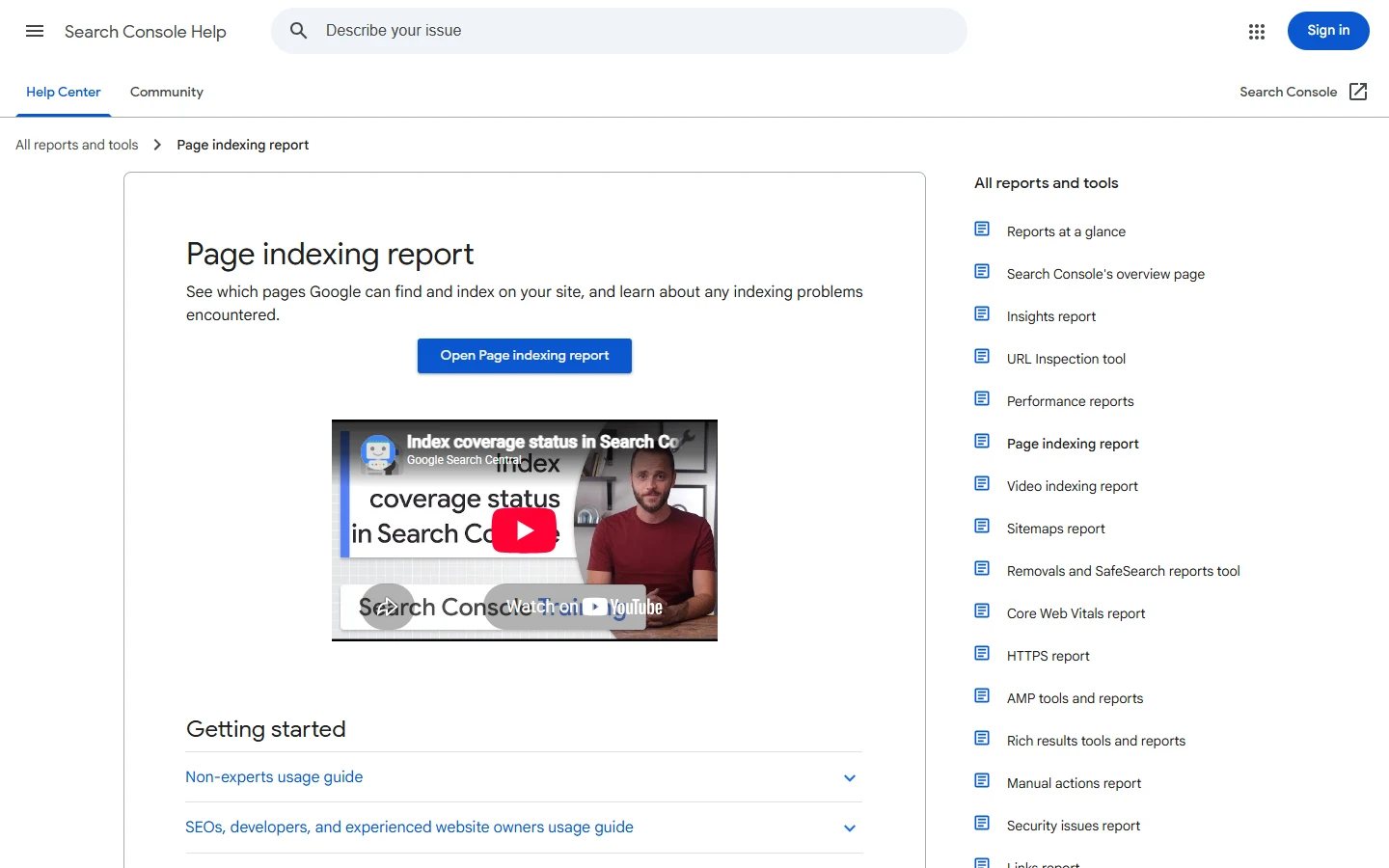
That’s what to look for in your own theme’s <head> when you view-source a product page: one clean <link rel="canonical"> tag pointing at the short /products/handle URL, exactly as section 4 above describes. On the indexing side, a private Search Console account obviously can’t be screenshotted without logging into someone else’s property, so here’s Google’s own public-facing explanation of the Page Indexing report referenced above, its Help Center documentation page rather than live account data:
6. Image Optimisation
Every product image needs descriptive alt text, an actual description of what’s in the image, not the filename, including relevant product details where natural. Use descriptive filenames before upload, since Shopify keeps whatever filename you give it. Compress images before uploading. Shopify serves images through its CDN, but that doesn’t fix an oversized source file.
- Example: an image uploaded as
IMG_4021.jpgwith no alt text tells Google, and any shopper using a screen reader, nothing. Renaming the file tonavy-canvas-tote-bag-front-view.jpgand writing alt text like “Navy canvas tote bag with brown leather handles, front view” gives both search engines and accessibility tools something real to work with. - Practical tip: compress before uploading, not after, with a tool like Squoosh or TinyPNG, and target roughly 200KB or less per product image at its display size. Shopify’s CDN resizes and serves modern formats automatically, but it can’t shrink an oversized source file’s actual byte weight before the first paint.
- Rename image files descriptively before upload; Shopify keeps whatever filename you give it
- Write alt text describing what’s actually in the image, not a keyword-stuffed guess or the raw filename
Here’s what real product photography looks like on a genuine Shopify store’s product page, allbirds.com again, the same store used above, viewed September 4, 2026, showing the page exactly as a shopper sees it:
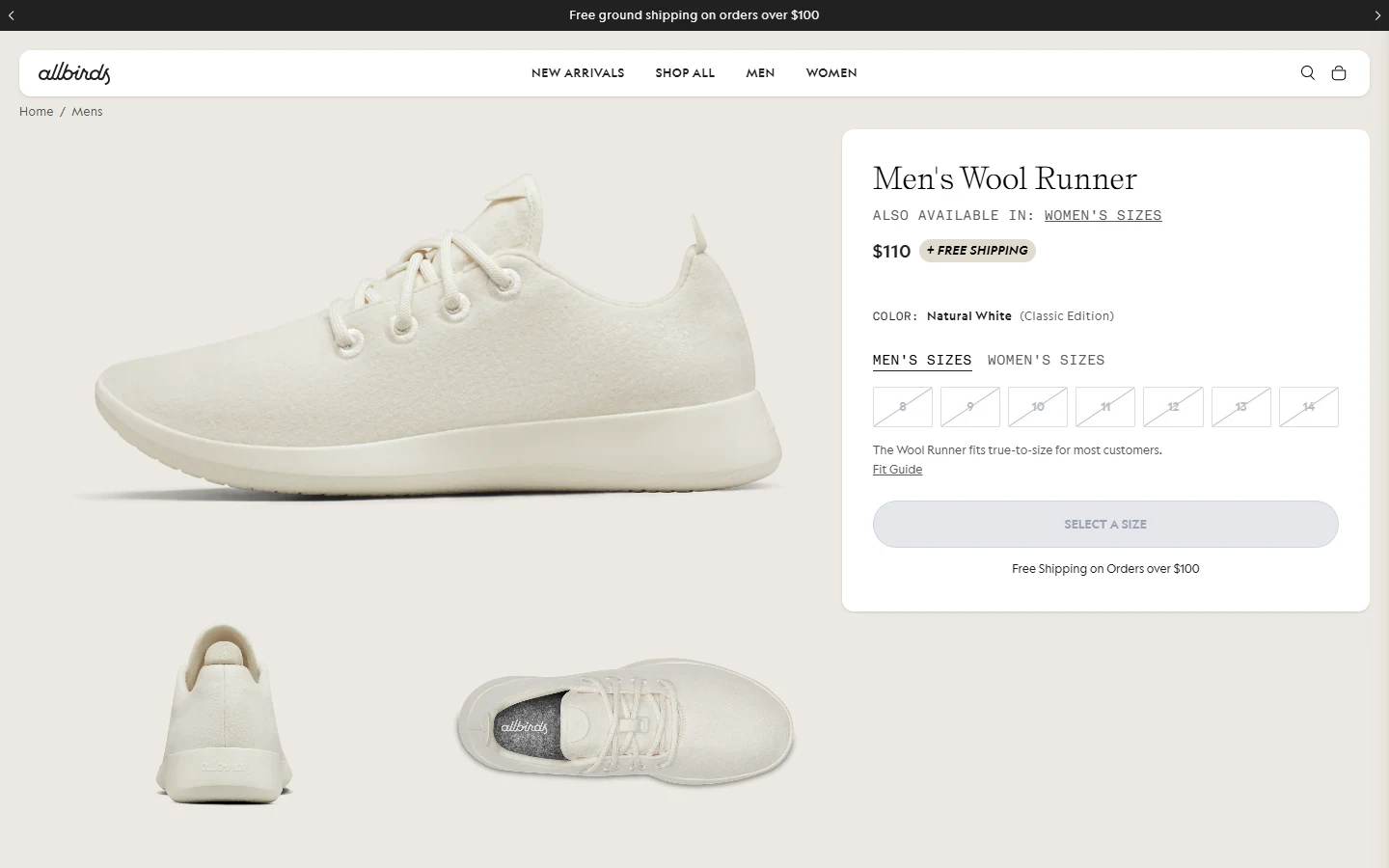
And here’s a real <img> tag with its actual alt attribute, pulled directly from that same live page’s source, not a made-up example. Allbirds’ own product-recommendation module renders this exact tag on the page (its srcset attribute is trimmed here for length; every other attribute, including alt, is shown exactly as it appears in the real markup):
Note the alt value: a real product name plus the specific colour and sole detail, not a keyword-stuffed guess and not the raw uploaded filename. That’s the same bar the practical tip above describes for your own product images.
7. Internal Linking
Link from blog content to relevant products and collections, from product pages to related products, and from collection pages down into the products inside them, using descriptive anchor text rather than “click here” or the same bare product name repeated identically everywhere. This is where the canonical-URL point from section 4 matters again: internal links should point to the canonical product URL, not the collection-nested one.
- Example: a blog post titled “How to Choose a Running Shoe” that never links to the actual “Trail Running Shoes” collection or a specific in-stock model is a missed, easy internal link. Linking the phrase “our lightweight trail options” directly to that collection turns a read-only post into a page that also earns its keep structurally.
- Practical tip: pull an internal-links export from a crawler and check anchor-text variety into your top products. If every internal link into a product uses the exact same anchor, work in 2-3 natural variants (the product name, a descriptive phrase, a category-relevant phrase) instead of repeating one exact-match anchor everywhere.
- Blog content links down into relevant products and collections
- Product pages link across to related products; collection pages link down into the products inside them, always to the canonical
/products/URL
8. Product and Breadcrumb Structured Data
Google’s structured data documentation distinguishes two markup types: product snippets and merchant listings. A purchasable Shopify product page should use merchant listing markup, which requires Product.name, Product.image, and an Offer, not an AggregateOffer, with price and priceCurrency set. Recommended fields include availability, shippingDetails, hasMerchantReturnPolicy and itemCondition. If a product has variants (size, colour), use ProductGroup with a shared productGroupID linking the variants together. For reviews, AggregateRating needs a ratingValue and at least a ratingCount or reviewCount.
One nuance worth getting right: Google’s rule against “self-serving” reviews applies to Organization and LocalBusiness markup, a business rating its own service on its own homepage, not to genuine product reviews on a product page. What actually disqualifies a product’s star rating is a rating that isn’t built from real, verifiable customer reviews, or one where an incentivized review isn’t disclosed. A genuine third-party review app that verifies real purchases is the safe way to populate this schema, not because self-hosted product reviews are banned outright, but because it keeps the reviews real. Add BreadcrumbList markup with at least two list items for eligibility.
- Example: a compliant offer block looks like
"offers":{"@type":"Offer","price":"48.00","priceCurrency":"USD","availability":"https://schema.org/InStock"}, price and priceCurrency both set, availability as a real schema.org URL, not a plain word like “yes” or “in stock.” - Practical tip: run Google’s own Rich Results Test against a live product URL rather than assuming your theme’s built-in schema is compliant. Shopify’s default markup covers the basics, but a review app or a custom variant setup often breaks a required field without it being obvious until the test flags it directly.
- Required:
Product.name,Product.image, anOffer(notAggregateOffer) with price and currency set - Variants: shared
ProductGroupwith aproductGroupID; reviews:AggregateRatingwith ratingValue plus ratingCount or reviewCount; breadcrumbs:BreadcrumbListwith 2+ items
9. Merchant Center and Search Console
For Search Console, a domain property, verified via a DNS TXT record, covers the whole store in one property, which is usually simpler on Shopify than the URL-prefix method. Submit the auto-generated sitemap once verified. For Merchant Center, connect through Shopify’s official “Google & YouTube” channel app. Prerequisites include a refund policy and terms of service linked in the store’s footer, at least one visible contact method, a valid payment provider, and complete product descriptions and images. Structured data on your pages and a Merchant Center feed work together, not as alternatives to each other, for full Shopping surface eligibility. This is a separate system from Google Ads conversion tracking on the checkout itself, worth checking on its own timeline if you haven’t already: see our guide on Shopify’s checkout tracking changes and the August 2026 deadline if any Google Ads or GA4 tags are still running through the old Additional Scripts box.
- Example: verify the domain-level property once via DNS TXT so
https://,www, and any other host variant all confirm under a single Search Console property, then submithttps://yourstore.com/sitemap.xml. Verifying only the URL-prefix method (justhttps://www.yourstore.com/) leaves other host variants unverified and splits your data across properties instead. - Practical tip: check Merchant Center’s Diagnostics tab weekly, not just at initial setup. Item-level disapprovals, a missing GTIN, a price mismatch between the feed and the live page, show up there before they quietly reduce Shopping visibility with no other warning.
- Search Console: domain-property verification via DNS TXT, then submit the auto-generated sitemap
- Merchant Center: connect via Shopify’s official Google & YouTube channel app; confirm refund policy, terms of service, a visible contact method, and complete product data are all in place first
10. Page Performance
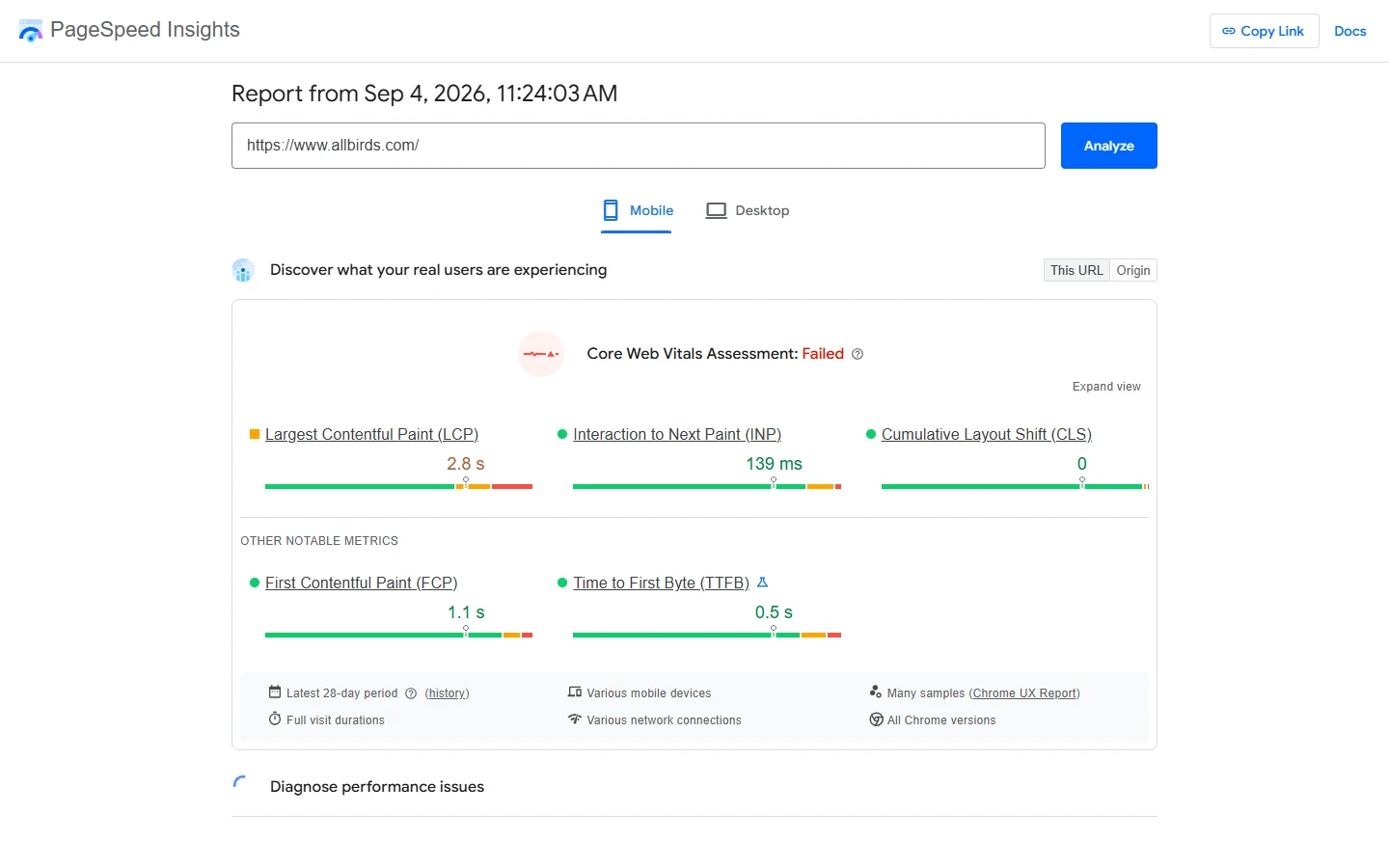
Core Web Vitals, particularly LCP, INP and CLS, are checkable directly through PageSpeed Insights against the live store. Compressed images (section 6) are usually the single biggest lever on a Shopify store specifically, followed by app bloat. Every third-party app installed adds its own script weight, and it’s worth periodically auditing which installed apps are still earning their page-speed cost. If competitive research is part of that audit, a free Shopify app detector can show what a competitor’s storefront is running, which is a useful sanity check before assuming a slow page is your theme’s fault.
- Example: a product page loading a 2MB uncompressed hero image alongside 4 unused review, upsell, and chat-widget app scripts can post a mobile LCP well past 4 seconds. Compressing the hero image and removing even one unused app is often enough to pull that back under Google’s 2.5-second “good” LCP threshold.
- Practical tip: run the same URL through PageSpeed Insights before and after each app you install or remove, not just once a quarter, so you know which specific change moved the score instead of guessing after several changes have piled up.
- Compressed images (section 6) are usually the single biggest Shopify-specific lever
- App bloat is the second: audit installed apps periodically and remove ones that aren’t earning their page-speed cost
Why Clean Product Data Matters Beyond Rankings
Most of this checklist is written for search engines, but the same underlying data quality pays off in a second place. Accurate variant information, current pricing, and clear availability aren’t just schema requirements. They’re also what any AI shopping assistant or customer-service tool a merchant uses downstream, from a support chatbot answering “is this in stock” to an AI shopping agent comparing products across a category, actually depends on to give a correct answer. A product feed with stale prices or missing availability produces the same wrong answer whether the reader is Googlebot, a shopper, or an AI system summarizing the page. Getting the structured data and product data right once tends to serve more than one audience.
This is also, honestly, the kind of work our team does for Shopify merchants directly. A full technical SEO audit, fixing the duplicate-URL and structured-data issues covered here, sits under South Asia Digital’s e-commerce marketing and SEO services, not as a hard sell here, just worth knowing if you’d rather have someone run this checklist against your store than do it yourself.
The Implementation Checklist
| Task | Owner |
|---|---|
| Confirm canonical tags, sitemap.xml, robots.txt, SSL are live (Shopify default) | Verify only, no action needed |
| Map one primary keyword per page (collection / product / blog) | Merchant / SEO lead |
| Review store architecture: collection count, subcategories, filter URLs | Merchant / SEO lead |
| Write unique title tags and meta descriptions per page | Merchant / content writer |
| Audit one H1 per page, especially custom page templates | Developer / theme editor |
| Audit theme Liquid for collection-scoped product links, switch to product.url | Developer |
| Canonicalise or noindex thin tag-based collection URLs | Developer / SEO lead |
| Set up 301 redirects for changed or discontinued product URLs | Merchant / developer |
| Write descriptive alt text and filenames for every product image | Merchant / content writer |
| Compress images before upload | Merchant / developer |
| Add merchant listing schema (Product, Offer, ProductGroup, AggregateRating) | Developer |
| Add BreadcrumbList markup (2+ items) to product and collection pages | Developer |
| Connect Google & YouTube channel app, verify Search Console, run PageSpeed check | Merchant / SEO lead |
Frequently Asked Questions
Does Shopify handle SEO automatically?
Partially. Shopify automates canonical tags, sitemap and robots.txt generation, SSL, and base product schema. It does not automate keyword research, metadata, image alt text, content, backlinks, or the collection/product duplicate-linking issue covered in section 4.
Why do I have two URLs for the same product?
Shopify generates both a canonical /products/handle URL and a collection-nested /collections/x/products/handle version for every product. The canonical tag already points search engines to the short version. The fix worth making is ensuring your theme’s internal links do too.
Is Shopify good for SEO out of the box?
The technical foundation is solid: clean URLs, automatic canonicals and sitemaps, fast global hosting. Whether a specific store ranks well still depends entirely on the on-page and content work in this checklist, none of which Shopify does for you.
Does an app on the storefront slow down my Shopify SEO?
It can. Every installed app adds its own script weight to the storefront, and enough of that adds up to a real Core Web Vitals cost. Periodically checking which apps are actually earning their page-speed impact, and removing ones that aren’t, is one of the more overlooked items on this list.
Do I need a review app for product schema, or can I write my own reviews?
Reviews need to be real, from actual customers, and visible on the page for the schema to be eligible for a star rating. A third-party review app that verifies purchases is the practical way to meet that bar, rather than manually authored testimonials written to fill the field.