
You want to leave a Google review and you’re stuck on one of three things: you can’t find the button, you don’t want to use your Gmail, or you posted one and it isn’t showing up. Most guides on this only cover the easy part, typing stars and clicking Post, and skip the part you’re searching for. This one covers all of it, sourced from Google’s own Maps help pages rather than guessed at.
What do you need before you can leave a Google review?
A Google account, nothing else. It doesn’t need to be a Gmail address specifically, any Google account works, and there’s a section below for creating one without Gmail if you don’t have either. Two things to know going in: reviews can’t be anonymous, and once posted, your review is visible on Google Maps until you remove it yourself.
How do you leave a Google review on a computer?
Two routes work, and they end at the same review form.
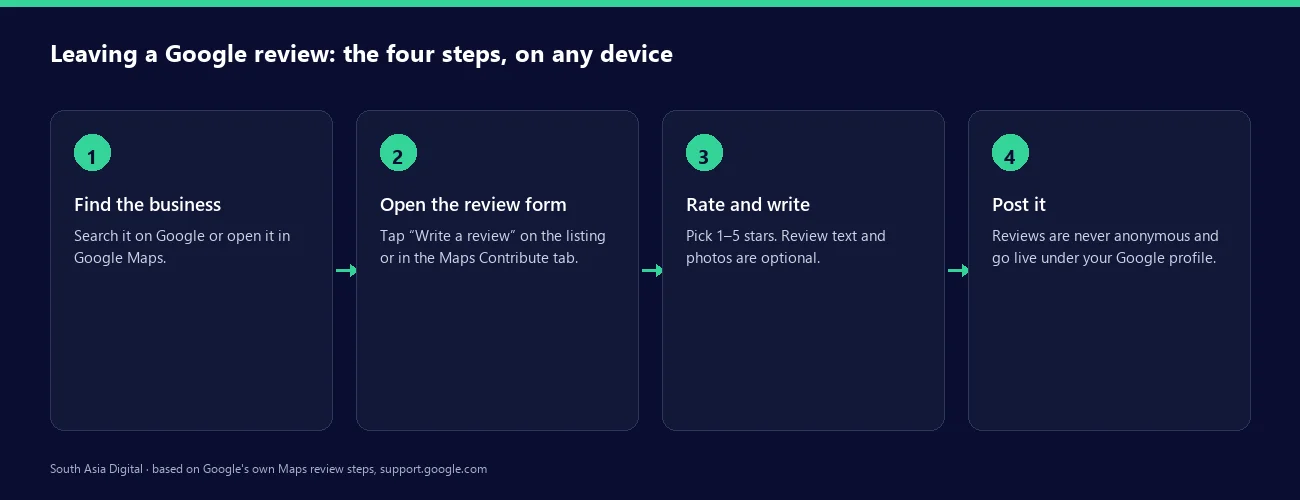
Through Google Maps: Go to Google Maps in your browser and sign in. Search for the business, scroll the left panel down, and select “Write a review.” Click the stars for a rating, add text and photos if you want, then click Post.
Through Google Search: Search the business name directly. Its knowledge panel on the right shows a star rating with a “Write a review” link next to it. Clicking it opens the same review form Maps uses.
How do you leave a Google review on your phone?
In the Google Maps app, find the business, then tap Contribute at the bottom of the screen and choose “Write review.” Select the place from the map if it doesn’t open directly, tap the stars to rate it, and write your review, text is optional on mobile too. You can also search the business in a mobile browser and use the same “Write a review” link that shows up on desktop.
How do you leave a Google review without a Gmail account?
Create a Google account using any existing email address instead of a new Gmail one. On the Google account sign-up page, choose “Use my current email address” and verify it, and you’ll have a working Google account that can post reviews, vote on Local Guides, and do everything a Gmail-based account can. Your name and profile photo on that account are what show up next to the review, since Google doesn’t allow posting without an identified account.
How do you edit or delete a Google review you already posted?
Open Google Maps, tap the menu icon, go to “Your contributions,” then “Reviews.” Find the one you want to change, tap the three-dot menu next to it, and choose “Edit review” or “Delete review.” Editing lets you change the star rating, the text, and the photos, nothing else. One detail worth knowing: Google shows the edit date as the review’s post date, so an old review you edit today will display today’s date going forward.
What do you do if the business isn’t on Google Maps yet?
You can’t review a place that doesn’t exist on Maps, so you add it first. In the Maps app, tap Contribute, then “Add place,” and fill in the name exactly as it should appear, the category, and the address. On a computer, use the menu icon in Google Maps and select “Add a missing place.” Google reviews new submissions before they go live, and the wait isn’t fixed: some additions clear in a few days, others take longer. This route works, but it isn’t instant. Once the place appears on Maps, the normal review steps above apply.
If you’re the business owner rather than a customer trying to review it, adding the place is a separate action from claiming it. Don’t use “Add place” to create a listing for your own business and then review yourself. Google’s policy treats that as the kind of fake engagement it actively removes.
Why isn’t your Google review showing up, and what fixes it?
Most competing guides list possible reasons here and stop. These are the fixes that go with each one.
- You’re not fully signed in. Check you’re signed into the same Google account in the tab or app where you posted, not a second account you have open elsewhere. Sign out and back in if you’re not sure which one is active.
- It just needs time. Google doesn’t publish an exact processing window, and reports vary from under an hour to a day or more. Give it 24 hours before assuming something’s wrong.
- Your account is new or has posted several reviews quickly. New accounts and sudden bursts of activity get closer automated scrutiny. There’s no way to speed this up beyond waiting.
- It was removed for a policy violation. Google’s help page is direct about this: reviews removed for violations like spam or inappropriate content aren’t reinstated. If your review broke a stated rule, even unintentionally, a second attempt that follows the rules is the only path forward.
- It’s stuck after several days. At that point, Google’s support channels for missing content are the next step, not refreshing the page repeatedly.
Common questions about leaving a Google review
Can you leave a Google review without an account?
No. Google requires a signed-in Google account for every review, and reviews can’t be posted anonymously. A Google account doesn’t have to use a Gmail address, but some Google account is required.
Can you leave an anonymous Google review?
No. Your profile name and photo appear next to every review you post, with no option to hide them.
How many times can you edit a Google review?
Google’s help documentation doesn’t state a limit. You can change the star rating, the written text, and the photos at any point after posting, and each edit updates the review’s displayed date.
What happens when you delete a Google review?
It’s removed from the business’s profile and from your own contribution history. Google doesn’t describe a way to recover a review once you’ve deleted it yourself, so treat deletion as final.
Can you leave a review for a business that isn’t on Google Maps?
Not directly. You first add the place to Maps through the “Add place” option in the app or “Add a missing place” on desktop, wait for Google to review the submission, then leave the review once the listing is live.
Written by Nadir Yaqoob, founder of South Asia Digital. Nadir has a software engineering background and runs the agency’s AI SEO and GEO work for SaaS and Shopify clients directly.