To delete your Instagram account permanently, go to Settings and privacy, open Accounts Centre, select Personal details, tap Account ownership and control, choose Deactivation or deletion, select your account, then tap Delete account and confirm with your password. Instagram holds the account in a 30-day grace period before the deletion becomes permanent, so logging back in during that window cancels it automatically.
That is the short version. The rest of this guide covers the parts that catch people out: the difference between deactivating and deleting, what actually happens to your data afterwards, what changes if the account is a business or creator profile, and what to do if Instagram will not let you delete it at all.
Deactivate or Delete? Know the Difference First
Deactivating hides your profile, photos, comments and likes without erasing anything. Logging back in at any point reverses it instantly, with everything exactly as you left it. Deleting is different: after a 30-day grace period, your posts, followers, messages and profile are permanently erased and cannot be recovered.
| Deactivate | Delete | |
|---|---|---|
| Reversible? | Yes, instantly, by logging back in | Only within the 30-day grace period |
| What happens to content | Hidden, not deleted | Permanently erased after the grace period |
| Username | Held, unavailable to others | Released and can be claimed by someone else |
| Best for | Taking a break | Leaving the platform for good |
Before You Delete: Download Your Data First
Once the 30-day grace period ends, your photos, videos, messages and saved content are gone for good, so download a copy first if you want to keep any of it. In Accounts Centre, go to Your information and permissions, then Download your information, choose All available information, and select a format. The export typically includes your posts, stories, saved items, direct messages, comments you have made, search history and the ad topics Instagram has associated with your account. Large archives can take a while to prepare, so start this before you begin the deletion process, not after.
How to Delete Your Instagram Account, Step by Step
These steps apply to the Instagram app on iOS and Android. If the option is missing from your app for any reason, the same path works through a browser at instagram.com.
Step 1: Open Settings and privacy
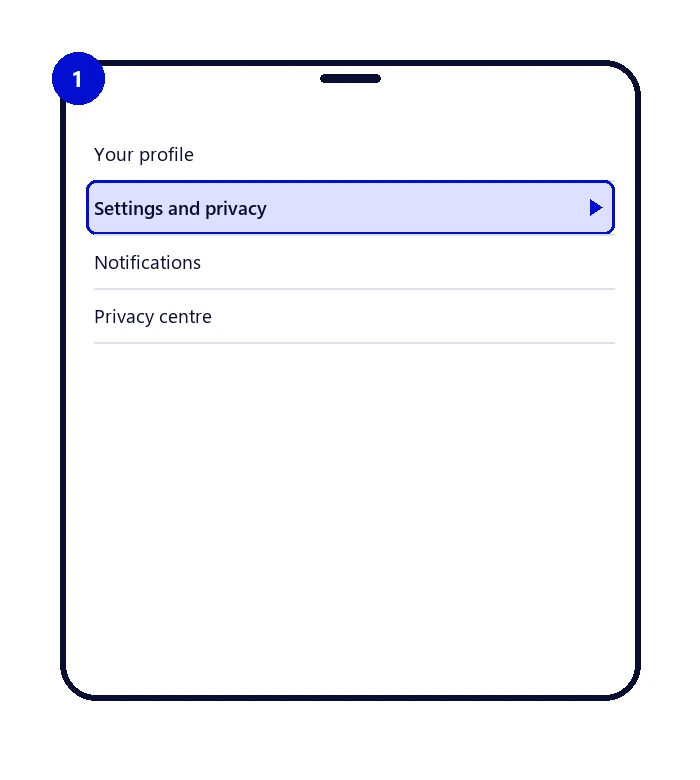
From your profile, open the menu and tap Settings and privacy.
Step 2: Open Accounts Centre
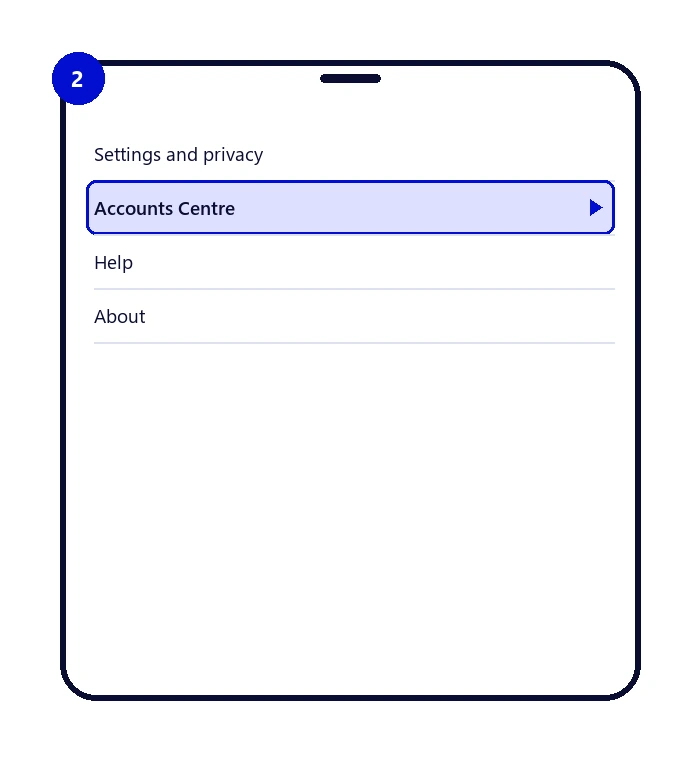
Inside Settings and privacy, tap Accounts Centre. This is Meta’s shared account hub, used for Instagram, Facebook and Threads settings together.
Step 3: Go to Personal details
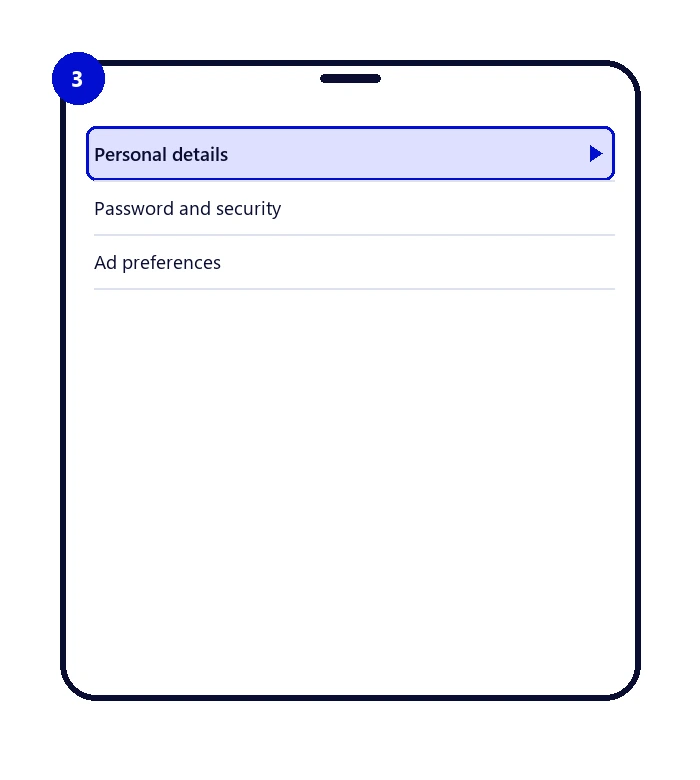
Under Account settings, tap Personal details, then Account ownership and control.
Step 4: Tap Deactivation or deletion
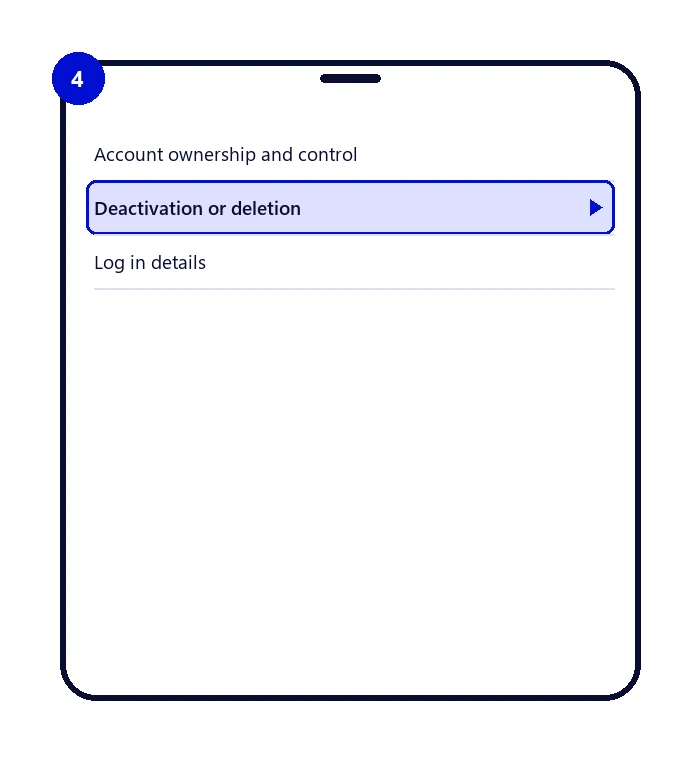
Select the account you want to remove, since Accounts Centre can list more than one profile.
Step 5: Choose Delete account and confirm
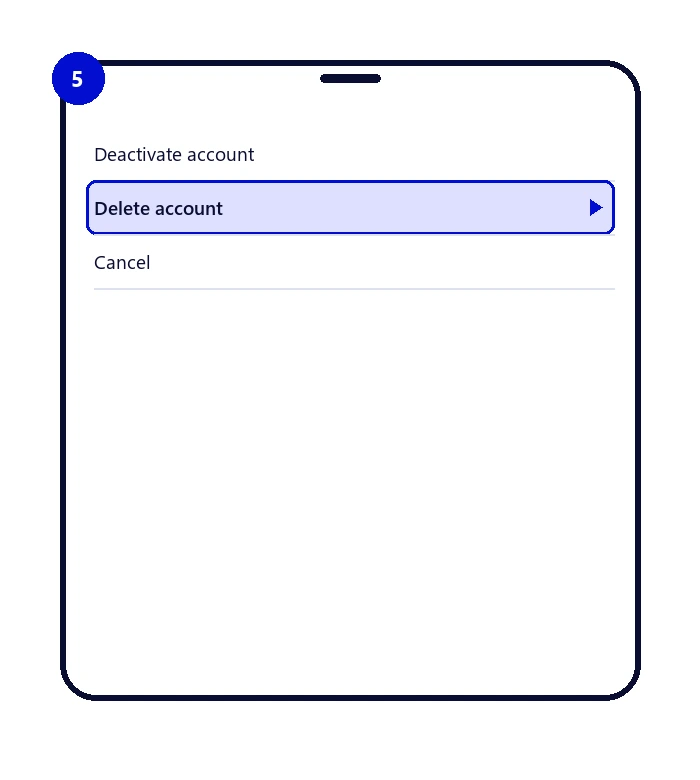
Tap Delete account, enter your password when prompted, and confirm. Instagram will ask you to confirm again before the request is submitted, since this step starts the 30-day grace period.
What Happens After You Delete Your Account
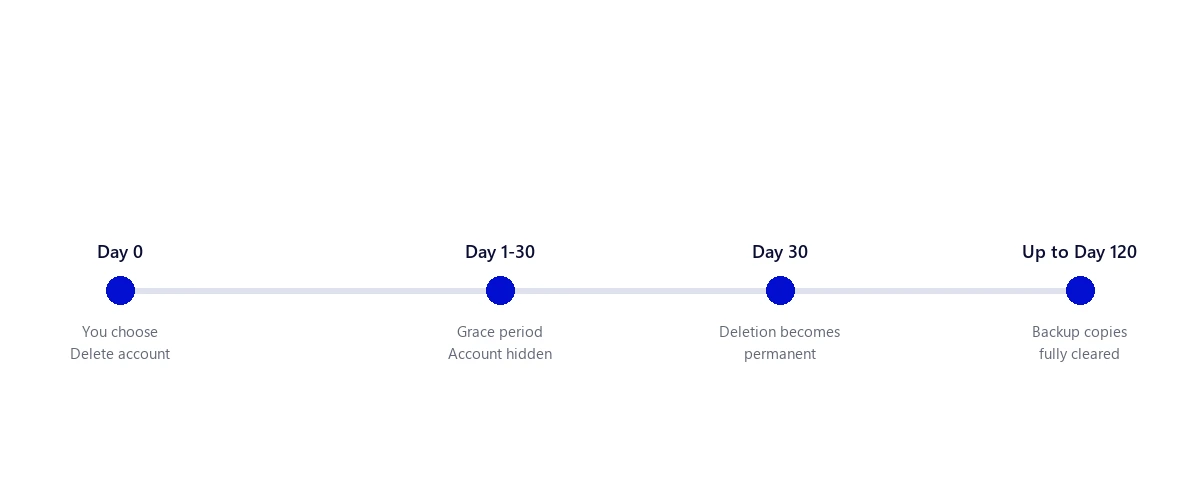
For the first 30 days, your account is hidden rather than gone. Logging in during this window cancels the deletion automatically and restores everything. After day 30, the deletion becomes permanent and cannot be reversed by any method, including contacting support.
Permanent does not always mean instant. Meta has separately noted that backup copies of deleted data can take longer than the 30-day account grace period to clear from its systems entirely, since account deletion and full backup removal are not quite the same process. Your profile and content stop being visible to anyone well before that final cleanup finishes.
Linked Facebook and Threads accounts are not affected. Meta treats them as separate accounts joined through Accounts Centre, so deleting Instagram does not delete Facebook or Threads, and each has to be deleted on its own if you want all three gone.
What Happens to Your Comments, Likes and DMs
Your comments and likes on other people’s posts are removed once your account is purged, so those interactions disappear from the posts you engaged with. Direct messages behave differently: messages you sent generally remain visible in the recipient’s inbox after deletion, but your profile picture is removed and your name is replaced with a generic placeholder, so the conversation stays without staying attributed to you in any identifiable way.
Business and Creator Accounts: What Deleting Doesn’t Do
Deleting a business or creator account follows the same steps above, but two things behave differently that most general guides skip. First, if the account is connected to a Meta Business Suite ad account, deleting the Instagram profile does not automatically stop related ad campaigns; those need to be paused or removed separately in Ads Manager, or they can keep running against a now-deleted account. Second, removing an Instagram account from Business Suite is not the same action as deleting it: unlinking just disconnects it from that dashboard and is fully reversible, while deletion under Accounts Centre is the step that actually removes the account.
If you are deleting a business account as part of a bigger rebrand rather than shutting the business down, it is worth thinking about that alongside your wider online presence, not just the Instagram side of it. Our reputation management services cover exactly that kind of transition, where old profiles, reviews and mentions need managing across more than one platform at once.
Can’t Delete Your Account? Troubleshooting Common Blockers
- Forgotten password. Use “Forgot password?” on the login screen. If you no longer have access to the original email or phone number, select “Need more help?” and Instagram will offer alternative verification options, including a linked Facebook login if one exists.
- No access to the linked email or phone number. Try recovering the email account itself first; regaining access there is usually the fastest route back into Instagram, after which the normal deletion steps apply.
- The account has already been disabled or restricted. A disabled account behaves differently from a deactivated one, and you may need to appeal through Instagram’s support form before you can access settings again.
- You can log in but the deletion option won’t submit. This is occasionally tied to a pending business verification, unresolved ad billing, or an open support case. Resolving that first usually clears the block.
Not Ready to Delete? Alternatives Worth Considering
Deletion is permanent, so it is worth ruling out the smaller options first if you are not entirely sure.
- Deactivate temporarily. Hides everything without losing it, reversible the moment you log back in.
- Make your account private. Keeps the account active but limits who can see it, without hiding it from people who already follow you.
- Restrict specific people. Limits what one person can see of your activity without unfollowing or blocking them outright.
- Archive individual posts. Removes single posts from your public profile without deleting your account or losing the post itself.
- Use Instagram’s built-in time-management tools. Daily time reminders and quiet mode address “I’m on it too much” without requiring you to leave the platform at all.
If the underlying issue is about managing visibility rather than leaving the platform entirely, that same trade-off shows up differently across apps. Our look at what the green dot means on Snapchat covers a similar visibility control on a different platform, if Instagram is not the only app in question.
Frequently Asked Questions
How long does it take to permanently delete an Instagram account?
Instagram holds a deleted account in a 30-day grace period before the deletion becomes permanent. Logging in at any point during those 30 days cancels the deletion and restores the account exactly as it was.
Can I recover my Instagram account after 30 days?
No. Once the 30-day grace period ends, the deletion is permanent and cannot be reversed, including by contacting Instagram support.
Does deleting Instagram also delete my Facebook or Threads account?
No. Facebook, Instagram and Threads are managed together in Accounts Centre but remain separate accounts. Deleting one does not delete the others; each has to be deleted individually.
Is deactivating the same as deleting?
No. Deactivating hides your profile and content temporarily and is reversed instantly by logging back in. Deleting permanently erases the account after a 30-day grace period and cannot be undone once that period ends.
Can I delete an old Instagram account if I don’t remember the password?
Yes, in most cases. Use the “Forgot password?” option, and if the linked email or phone number is no longer accessible, select “Need more help?” for alternative verification, including a linked Facebook login where one exists.
Do my comments and DMs disappear when I delete my Instagram account?
Comments and likes you left on other people’s posts are removed once your account is purged. Direct messages you sent generally stay in the recipient’s inbox, but your profile picture is removed and your name is replaced with a generic placeholder.
If you are working through this for a business profile rather than a personal one and want a hand thinking through what comes next for your wider online presence, get in touch with our team.