
If you have generated more than a handful of images in ChatGPT, your Library is probably a mess by now. Test renders, half-finished logo ideas, three versions of the same birthday card, a meme you made once and never looked at again. It all sits in the same grid, and after a few months it stops being useful and starts being clutter you scroll past.
The good news is that cleaning it up takes less than a minute once you know where the controls actually are. ChatGPT’s Library lets you select one image or a whole batch and remove them with a single Delete action, no need to hunt down and delete the entire conversation each image came from.
This guide walks through exactly where to click, using real screenshots of the interface, plus a genuinely useful detail most people miss: before you start deleting, it is worth knowing about the Favorites tab, which lets you keep the images you actually want without leaving them buried in a folder full of ones you do not.
Quick Checklist Before You Start
- ✓You’re signed in to your ChatGPT account. Library is tied to your account, not the app in general, so you need to be logged in before it will even appear in the sidebar, on the web or in the mobile app.
- ✓You’ve decided what’s actually worth keeping. Skim for anything you’d hate to lose before you start clicking Delete, that’s what the Favorites tab below is for.
- ✓You know deletion isn’t instantly permanent, but treat it like it is. There’s a short recovery window, not a long one, so don’t count on being able to change your mind next week.
- ✓You’re clearing a batch, not just one image. Select everything you want gone first, then delete it all in a single action instead of repeating the process one image at a time.
Key Takeaways
- You need to be signed in to your ChatGPT account first, Library doesn’t appear or hold anything until you’re logged in.
- Open Library from the left sidebar in ChatGPT, then use the checkboxes on any image to select it.
- You can select multiple images at once and delete them together from the bottom action bar.
- Before deleting, check the Favorites tab, marking an image as a favorite keeps it instead of losing it.
- Deleted images typically go to a temporary “Recently deleted” state for a short window before permanent removal, not straight to permanent deletion.
- Direct image deletion inside Library is a fairly recent addition. If your version does not show a Delete option, deleting the source conversation still works as a fallback.
Before You Delete: Know the Favorites Option First
Not every image belongs in the trash. If there is an image sitting in your Library that you actually want to hold onto long term, a favorite header shot, a logo concept you might revisit, an illustration you keep meaning to use, do not just leave it sitting in the general pile hoping you will remember where it is. ChatGPT’s Library has a dedicated Favorites tab, sitting right next to Suggested and Folders at the top of the screen. Selecting an image and marking it as a favorite pulls it into that tab, separate from everything else, so it stops competing for attention with the clutter you are about to clear out.
Think of it as sorting before you clean, not after. Go through your Library once, favorite anything worth keeping, and then delete freely, knowing the things you actually care about are already set aside.
How to Delete Images From Your ChatGPT Library
These steps apply to ChatGPT on the web. The mobile apps use the same underlying Library, laid out slightly differently for a smaller screen, but the same two actions, opening Library and selecting items to delete, work the same way.
Step 1: Open Library From the Sidebar
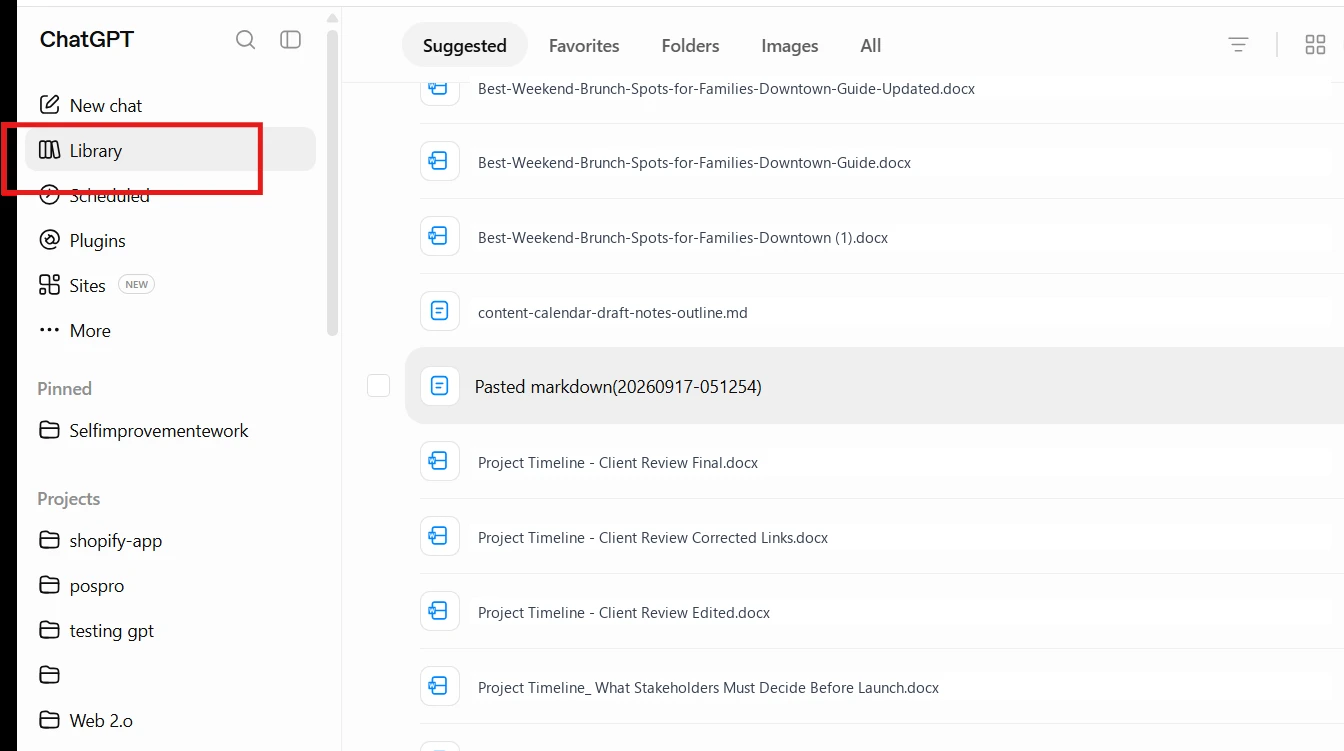
First, make sure you’re actually signed in, Library only shows up once you’re logged into your ChatGPT account, and it won’t hold anything from a session where you weren’t. Once you’re in, look in the left-hand sidebar, below New chat, and you will find Library. Click it to open your full collection of generated files and images, pulled together from across every conversation you have had, rather than scattered inside each individual chat thread. Along the top of the Library panel sit a row of tabs, Suggested, Favorites, Folders, Images, and All, which let you narrow the view down to just what you are looking for.
Step 2: Select the Images You Want to Remove, Then Delete
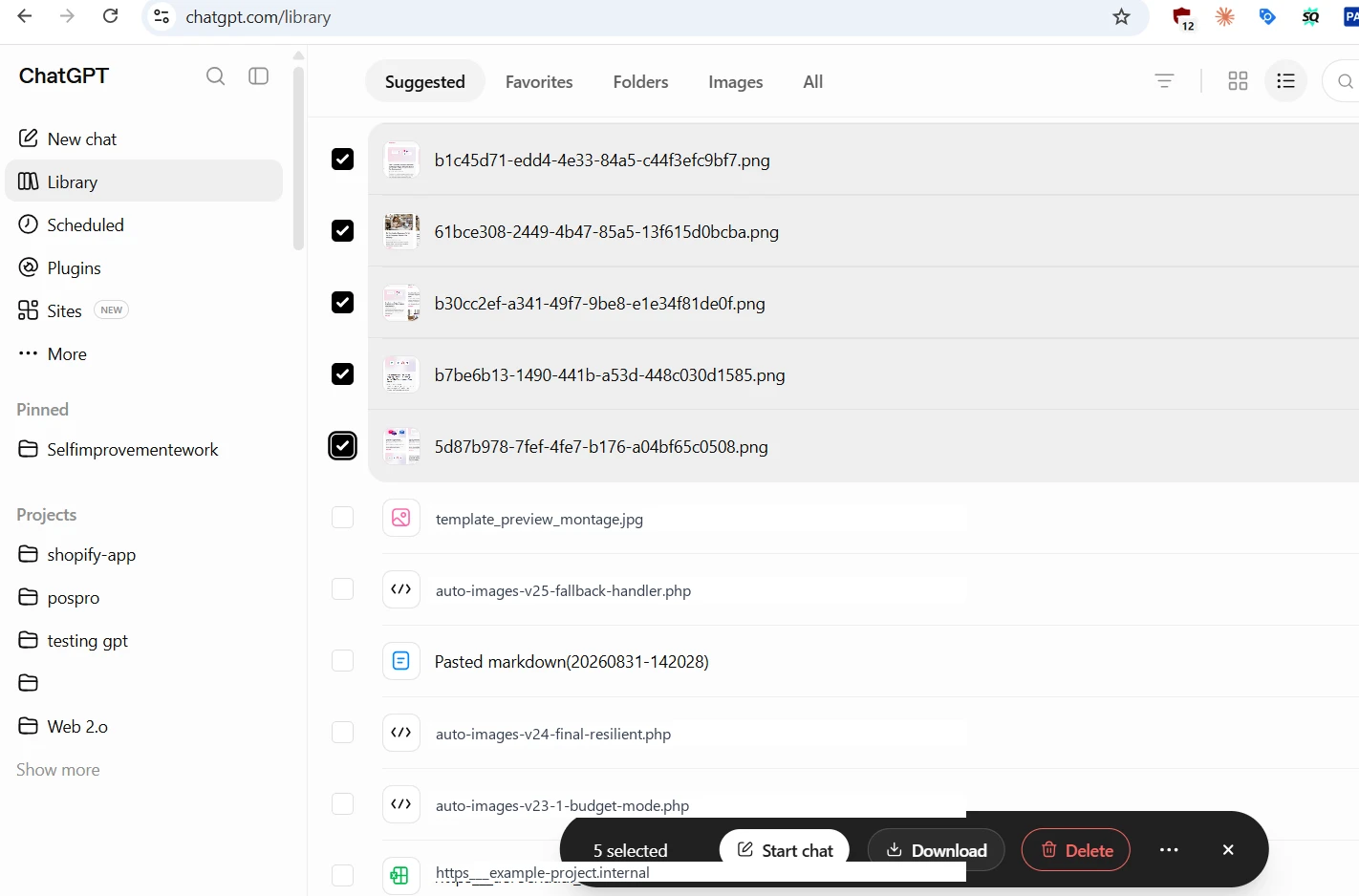
Hover over an image and a checkbox appears in its corner. Click it to select that image, and keep clicking checkboxes on additional images to build up a batch, there is no limit to selecting just one at a time. As soon as anything is selected, a dark action bar appears fixed to the bottom of the screen, showing how many items you have picked (five, in the screenshot above) along with three actions: Start chat (opens a new conversation using the selected image as context), Download (saves a copy to your device), and Delete.
Click Delete, confirm the prompt that follows, and the selected images are removed from your Library in one action. There is no need to open each image individually or track down the chat it came from.
What Actually Happens After You Hit Delete
A few things are worth knowing before you clear out a large batch, since none of this is spelled out clearly inside the app itself.
It is not necessarily instant and final. ChatGPT generally moves deleted items into a temporary “Recently deleted” state first rather than wiping them the second you click confirm, similar to how deleted chats are handled, with permanent removal from OpenAI’s systems following within roughly 30 days. That window exists as a safety net for genuine mistakes, not as a long-term archive, so treat the confirmation prompt as your real decision point, not something you can casually undo days later.
This delete button has not always existed. Through much of 2025, ChatGPT’s Library had no direct way to remove a single generated image at all, the only way to get rid of one was to delete the entire conversation it came from, taking every other message and image in that chat down with it. The direct, multi-select Delete option shown above is a newer addition. If you are on an older version of the app and do not see a Delete option after selecting an image, opening the original chat and deleting the whole conversation is still the reliable fallback.
Does it also remove the image from the original chat? OpenAI has not published a detailed technical explanation covering every case here. Since Library shows the same underlying file that lives in your conversation rather than a separate duplicate copy, deleting it from Library is more likely to remove it everywhere it appears, including inside that original chat, than to leave an untouched copy behind. If there is a specific conversation you want to keep fully intact, screenshots or downloading the image first, before deleting it from the Library, is the safer move.
One Small Thing Worth Knowing First
If a chat has several images and you only want one of them gone, select just that image in the Library grid instead of opening the chat and deleting the whole conversation. Picking it out from the grid removes that single image without touching the rest of the thread or any other images generated inside it.
It is also a good reminder that ChatGPT does not behave identically for everyone using it. Library layout, available buttons, and rollout timing can differ from one account to another depending on plan and app version, the same kind of account-level variation we get into in does ChatGPT give the same answers to everyone, which looks at why two people can ask ChatGPT the exact same thing and see something different.
Frequently Asked Questions
How do I delete an image from my ChatGPT Library?
Open Library from the left sidebar, hover over the image to reveal its checkbox, select it, then click Delete in the action bar that appears at the bottom of the screen and confirm the prompt.
Can I delete multiple images from ChatGPT’s Library at once?
Yes. Select as many image checkboxes as you want, and the bottom action bar’s Delete button removes all selected images together in a single confirmation, rather than requiring you to delete them one by one.
Is deleting an image from ChatGPT’s Library permanent right away?
Not usually instantly. Deleted items typically move to a temporary “Recently deleted” state before permanent removal follows within roughly 30 days, similar to how deleted chats are handled. Treat the confirmation prompt as the point of no return rather than assuming a long grace period afterward.
Does deleting an image from Library also remove it from the chat it came from?
OpenAI has not published exact documentation covering this for every case, but since Library displays the same underlying file rather than a separate copy, deleting it there is more likely to remove it everywhere it appears, including the original conversation, than to leave a duplicate untouched. Download or screenshot the image first if you want to keep that specific chat fully intact.
How do I keep an image instead of deleting it?
Select the image and mark it as a favorite rather than deleting it. This moves it into the Favorites tab in Library, separating it from everything else so it is easy to find again without risking it getting deleted in a later cleanup.
What if I don’t see a Delete button when I select an image?
Direct image deletion inside Library is a relatively recent feature. If your version of ChatGPT does not show it, open the conversation the image came from and delete that chat instead, which removes the image along with the rest of that conversation.
Does deleting images free up my ChatGPT storage limit?
Not in a way that changes how many new images you can generate. Plan storage limits mainly apply to uploaded files and documents, not to the number of images sitting in your Library, so cleanup is more about tidiness than reclaiming quota.