You check Google Ads on a Tuesday and your best-performing campaign has quietly stopped converting. No error in Shopify. No warning email. The store is taking orders normally, customers are reaching the Thank you page, and the numbers just stopped moving. If that happens to a non-Plus Shopify store any time after August 26, 2026, the cause probably isn’t your campaign. It’s a checkout change Shopify has been rolling out since 2024.
Here is the direct answer: on August 26, 2026, Shopify auto-upgrades the Thank you and Order status pages on every non-Plus store (Basic, Shopify, and Advanced plans) that hasn’t upgraded them already. The pages themselves keep working fine. What stops is anything running through the old Additional Scripts box or checkout.liquid, including Google Ads conversion tags, GA4/GTM containers, and Meta or affiliate pixels pasted in there. There’s no error message when it happens. Reporting just goes quiet, and if you’re running Smart Bidding, Google Ads keeps optimizing on whatever conversions it can still see, which means it doesn’t just under-report, it starts spending differently.
This guide covers exactly what changes on August 26, why it hits Google Ads conversion tracking specifically, how to check in under five minutes whether your store is affected, and the exact steps to migrate before the deadline.
What’s Actually Happening on August 26, 2026
Shopify has been migrating checkout customization to a new system called Checkout Extensibility since late 2024, moving away from the old model where merchants edited raw Liquid and JavaScript directly. Two dates matter here, not one.
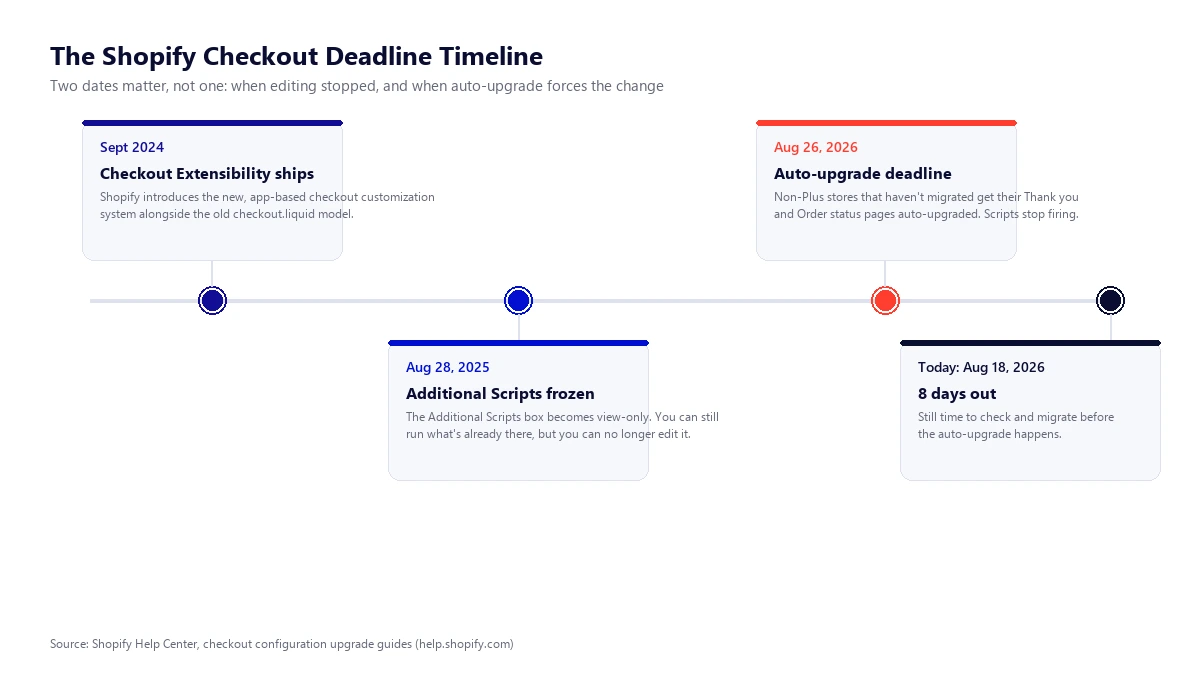
On August 28, 2025, the Additional Scripts field in Checkout settings became view-only across the board. Whatever code was already sitting in that box kept running, but nobody could add to it or edit it anymore, on any plan. That first date passed quietly for most non-Plus merchants because nothing actually stopped, it just froze in place.
August 26, 2026 is the date something actually breaks. According to Shopify’s own upgrade guide, stores on the Basic, Shopify, and Advanced plans that haven’t manually upgraded their Thank you and Order status pages by then get auto-upgraded automatically. The new pages replace the old ones, and the JavaScript that used to run through Additional Scripts and checkout.liquid does not carry over to them. It simply stops executing, on a page that otherwise looks and functions exactly like it always has.
Why This Breaks Google Ads Conversion Tracking Specifically
Most merchants who set up Google Ads conversion tracking on Shopify years ago did it the same way: paste the conversion tag, or a Google Tag Manager container that fires it, into the Additional Scripts box under checkout settings, scoped to the Thank you page. That single tag is often the only place a completed purchase gets reported back to Google Ads at all.
Once the auto-upgrade happens, that script never runs again. The order still completes. The customer still lands on a Thank you page. Shopify’s own dashboard shows the sale normally. The only thing missing is the signal that used to travel from that page back to Google Ads, and there’s nothing in Shopify’s admin that flags this as broken, because from Shopify’s side, nothing is.
The sharper risk isn’t the missing reporting, it’s what Smart Bidding does with a partial signal. Automated bidding strategies like Target ROAS and Maximize Conversions don’t just log fewer conversions and carry on, they actively reallocate spend toward whatever they can still see converting, and away from campaigns or keywords that look like they stopped working. A campaign that’s actually still profitable can get starved of budget within days, because the algorithm has no way to know the conversions are still happening, just unreported.
Who Is Actually Affected
This deadline is specific, not universal. It’s worth checking which category your store falls into before assuming you need to act.
| Situation | Affected by Aug 26, 2026? |
|---|---|
| Non-Plus store, Google Ads/GA4/GTM tag pasted directly into Additional Scripts | Yes, stops firing entirely |
| Non-Plus store already using the Google & YouTube app or a Customer Events-based tracking app | No, already on the new system |
| Shopify Plus store | Different timeline; Plus stores were required to migrate checkout customizations earlier and have their own upgrade path |
| Store with no tracking scripts in checkout at all (relies only on server-side or storefront tracking) | No direct impact, but worth confirming nothing was quietly added years ago |
The pattern to watch for is age of setup. Stores where someone configured Google Ads tracking manually a few years ago, then never touched it again because it “just worked,” are the most likely to be caught off guard, precisely because it kept working right up until the day it didn’t.
How to Check If Your Store Is Affected, in Under Five Minutes
Step 1: Check what’s in Additional Scripts
In Shopify admin, go to Settings > Checkout, then find Configurations and open Review customizations (on older admin layouts this may show as an Additional Scripts link directly under Checkout settings). Look for any pasted JavaScript referencing Google Ads, gtag, Google Tag Manager, a conversion ID, or any third-party pixel. If the box is empty, you likely have nothing to migrate here specifically, though it’s still worth checking step 2.
Step 2: Check whether you’re already on the Google & YouTube app
Go to Apps in Shopify admin and check whether the Google & YouTube app (published by Google) is installed and connected to your Google Ads account. If it is, and conversion tracking runs through it, your tracking already uses the sandboxed Customer Events system and the auto-upgrade shouldn’t disrupt it. If it isn’t installed, and you found a manual tag in step 1, you have a migration to do.
Step 3: Run a live test order
Use Google Ads’ Tag Diagnostics (under Tools > Conversions > the specific conversion action > Diagnostics) or the Tag Assistant browser extension, place a real or test order, and confirm the conversion actually registers. Don’t rely on memory of “it worked when I set it up.” Confirm it fires today, on the current version of your checkout.
What Breaks vs. What Replaces It
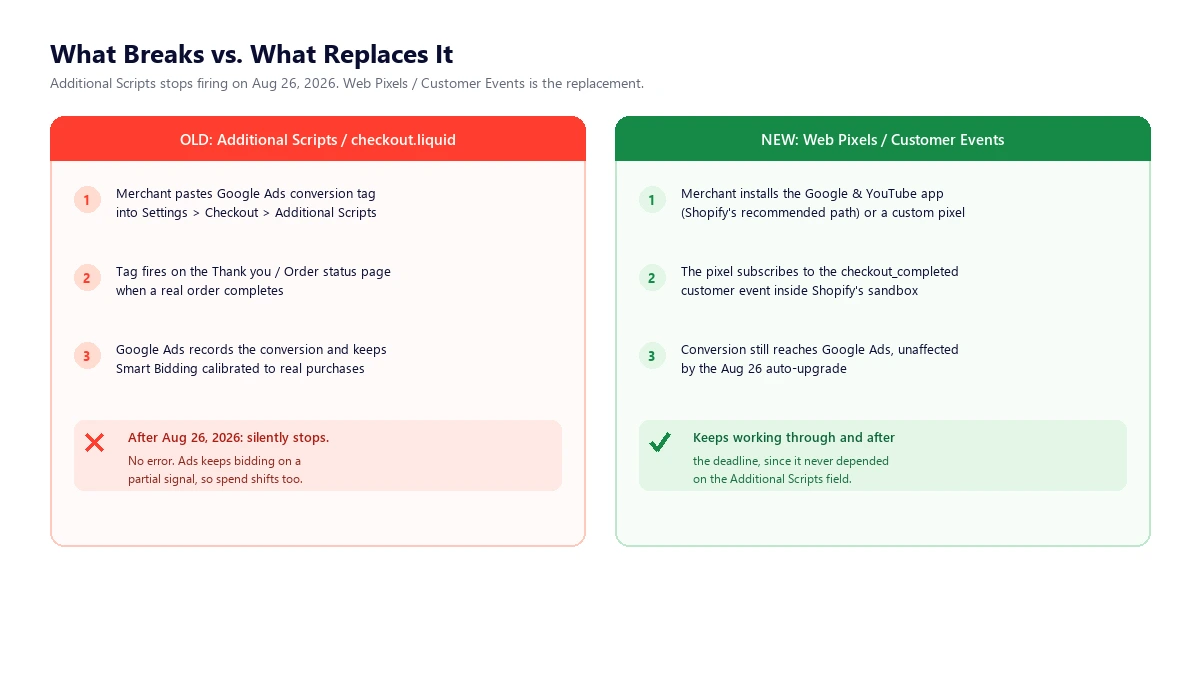
The replacement isn’t optional or a workaround, it’s the system Shopify built specifically to replace Additional Scripts: the Web Pixels API, configured through Settings > Customer Events in Shopify admin. Instead of raw script tags with full page access, tracking runs inside a sandboxed environment that subscribes to standard events like checkout_completed, and the sandbox is exactly why the old copy-paste-a-tag approach doesn’t carry over automatically. It has to be rebuilt inside the new system.
How to Fix It, Step by Step
Step 1: Install the Google & YouTube app
Shopify and Google both point non-Plus merchants toward the official Google & YouTube app as the primary migration path for Google Ads conversion tracking specifically. It connects directly to your Google Ads account, runs through Customer Events rather than Additional Scripts, and supports Enhanced Conversions without hand-written code. For most stores using nothing more advanced than a standard conversion tag, this single app replaces what used to be a manually pasted script.
Step 2: For GTM containers or custom tracking, use a Customer Events custom pixel
If your setup is more involved, a GTM container handling multiple destinations, custom conversion logic, or a non-Google ad platform, go to Settings > Customer Events and add a custom pixel. This runs your own JavaScript inside the sandbox, subscribed to the specific events you need (checkout_completed, page_viewed, and others). It requires rewriting the tracking logic against the sandboxed API rather than copying the old script verbatim, since direct DOM access and some data (including certain PII) isn’t available the way it was in Additional Scripts.
Step 3: If you haven’t upgraded the pages themselves, do it manually rather than waiting for auto-upgrade
Under Settings > Checkout > Configurations, there’s an option to upgrade the Thank you and Order status pages directly. Doing this on your own schedule, after tracking is confirmed working on the new system, is safer than letting the August 26 auto-upgrade force the switch while you’re mid-migration or unaware it happened.
Step 4: Verify before the deadline, not after
Place a test order, check Google Ads Tag Diagnostics, and confirm the conversion registers through the new setup. Do this with enough runway before August 26 that a broken migration doesn’t quietly replace a broken deadline with a broken fix.
Step 5: Re-check seven to fourteen days after the deadline
Even a clean migration is worth confirming against real post-deadline data, not just a test order. Compare conversion volume in the two weeks after August 26 against your typical baseline. A drop that lines up with the date, even after you thought migration was done, is the clearest sign something in the new setup isn’t firing the way the old one did.
Frequently Asked Questions
What exactly happens to Shopify checkout tracking on August 26, 2026?
Non-Plus Shopify stores (Basic, Shopify, and Advanced plans) that haven’t manually upgraded their Thank you and Order status pages get auto-upgraded on that date. Any JavaScript running through the old Additional Scripts field or checkout.liquid, including Google Ads, GA4, GTM, and other tracking pixels, stops firing, with no error shown in Shopify admin.
Why does this break Google Ads specifically more than other tracking?
Because most manual Google Ads conversion setups on Shopify were configured years ago as a single script in Additional Scripts, and because Smart Bidding actively reallocates spend based on the conversions it can see. A tracking gap doesn’t just under-report for Google Ads, it can change how a campaign’s budget is spent while the gap goes unnoticed.
Is my store affected if I’m on Shopify Plus?
Shopify Plus stores are on a different, earlier checkout migration timeline and generally were already required to move off checkout.liquid customizations before this date. The August 26, 2026 deadline specifically targets non-Plus stores on the Basic, Shopify, and Advanced plans.
What should I replace Additional Scripts with for Google Ads tracking?
Shopify and Google both recommend the official Google & YouTube app, which connects to Customer Events (the Web Pixels API) instead of the deprecated Additional Scripts field, and supports Enhanced Conversions without custom code. More complex setups, such as GTM containers or multi-platform tracking, need a custom pixel built against the Customer Events API.
How do I check right now if my store will be affected?
Go to Settings, then Checkout, then Configurations, then Review customizations, and look for any pasted script referencing Google Ads, gtag, or Google Tag Manager. Separately, check under Apps whether the Google & YouTube app is already installed and connected. If you find a manual script and no app-based tracking, you have a migration to complete before August 26, 2026.
If you’re also weighing what else is installed on the storefront side, our comparison of Shopify app detectors covers how to audit third-party scripts running on a store beyond just the checkout. And if the numbers in your Google Ads and analytics reporting already look inconsistent for reasons unrelated to this deadline, our breakdown of why traffic and click data can mislead even when nothing is technically broken covers a related class of reporting gaps worth ruling out at the same time.
We handle Google Ads conversion tracking setup and verification as part of our Google Ads campaign management work, including migrations like this one where the fix is more about correct implementation than strategy. If you’re not sure whether your own setup survives August 26, checking it now costs a few minutes; finding out after costs a few weeks of misallocated ad spend.